Style your Markdown preview: themes, Google Fonts & custom CSS.
Nine built-in themes, 1,900+ Google Fonts, code block themes, and a live custom CSS editor — everything in one panel, applied as you type, stored only in your browser.
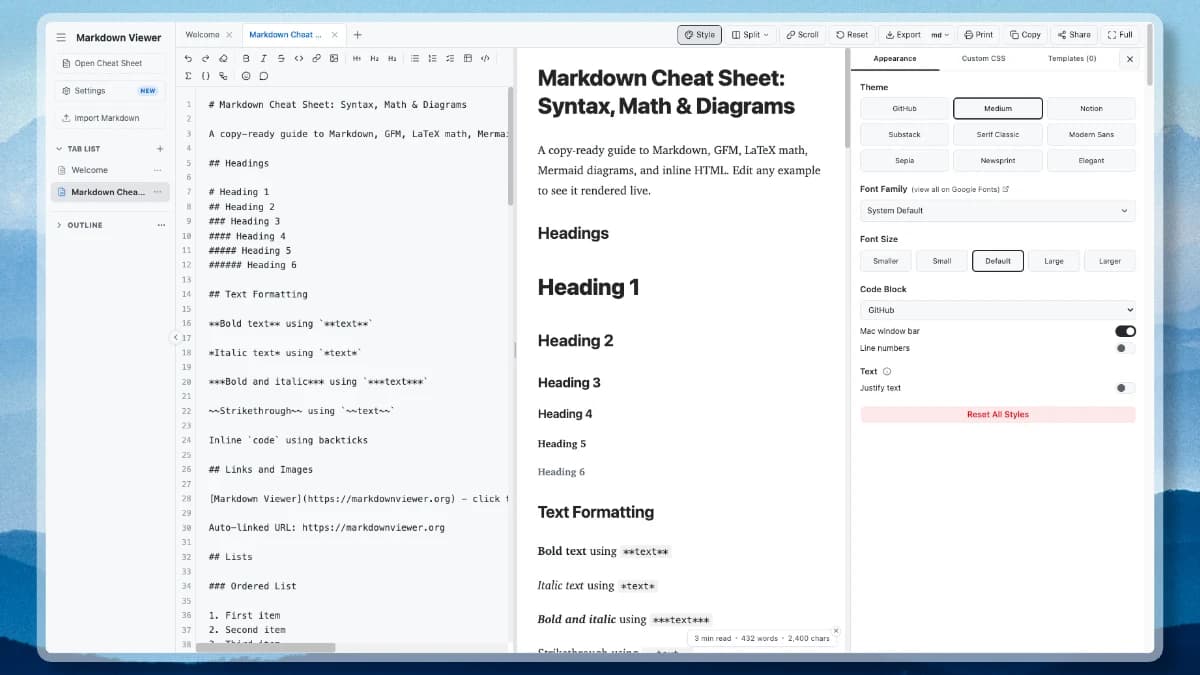
The Style panel started with a request from Hazal on Product Hunt, who wanted the preview to match their blog’s typography and colors while drafting. That feedback became the Style panel in Markdown Viewer. This post walks through everything it can do, from one-click themes to a custom CSS editor that imports your blog’s real stylesheet.
1. Pick a Markdown preview theme, including platform look-alikes
Open the panel with the Style button in the toolbar. The Appearance tab starts with nine Markdown preview themes:
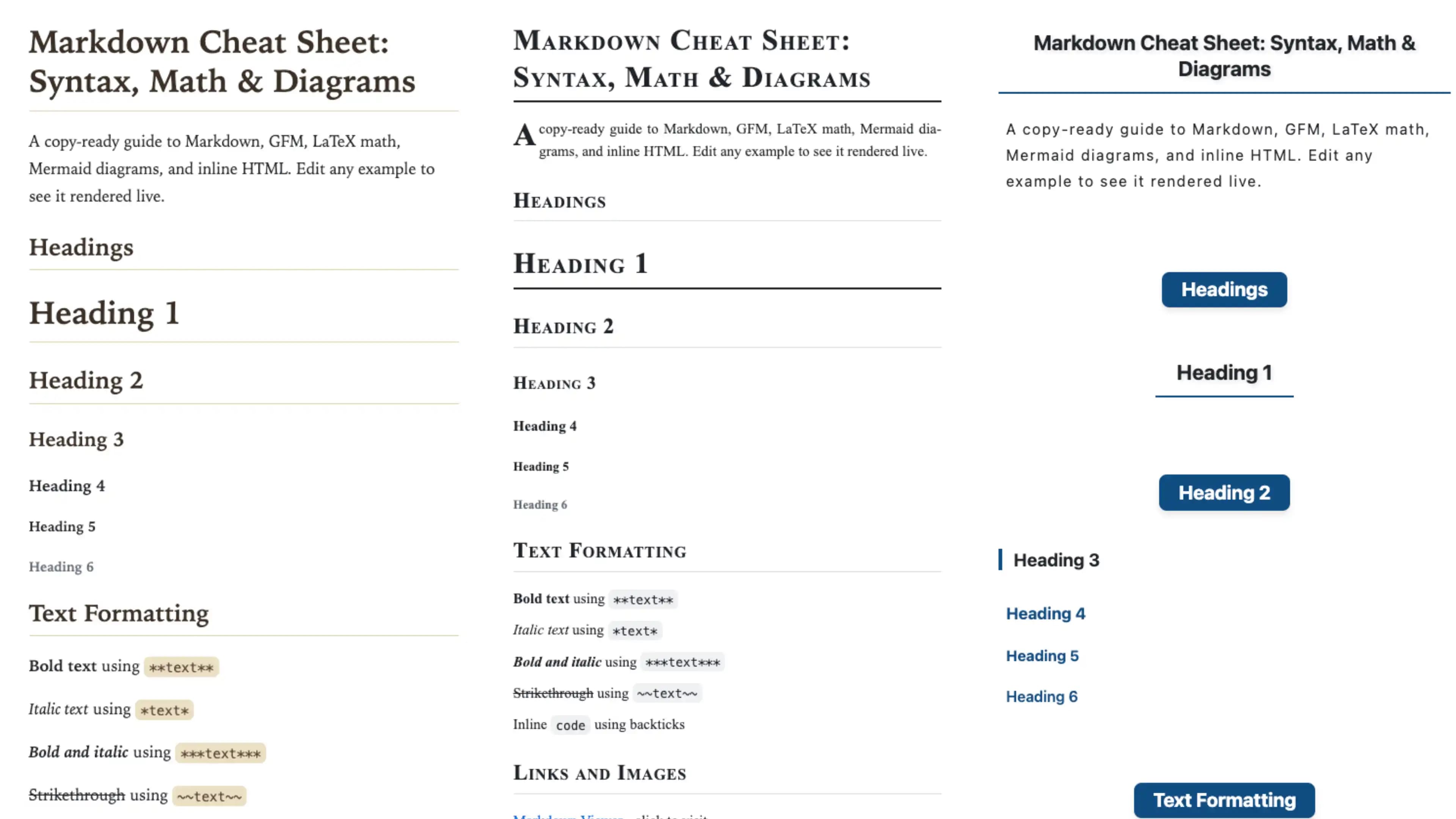
- GitHub — the familiar default for READMEs and technical docs.
- Medium, Notion, Substack — platform look-alike themes, so a draft reads the way it will feel after you publish it there.
- Serif Classic, Modern Sans, Sepia, Newsprint, Elegant — editorial styles for long reads, from warm e-book paper to a small-caps newspaper front.
2. Typography: 1,900+ Google Fonts for the Markdown preview
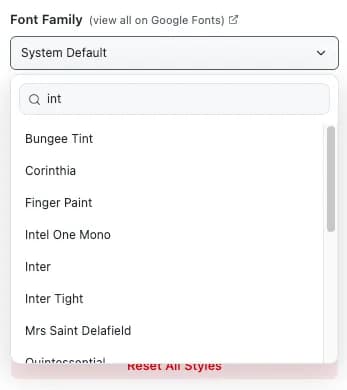
The Font Family dropdown searches the entire Google Fonts catalog — type a few letters, pick a family, and it loads on the fly. Five font sizes cover dense reference docs through comfortable long-form reading.
Markdown preview themes ship with their own typefaces, but your choice always wins: pick a font on top of Newsprint and the body switches immediately while the theme’s layout — small caps, drop caps, justified columns — stays intact. Code blocks keep their monospace font either way.
3. Accent colour, only when it matters
Some themes (currently Elegant) build their headings, borders, and table headers around a primary colour. When such a theme is active, a colour row appears: six muted presets, three soft pastels, and a rainbow button that opens the system colour picker. The ⓘ icon explains exactly where the colour is used — it is also available to your own CSS as var(--md-primary-color).
4. Code block themes that work in dark mode
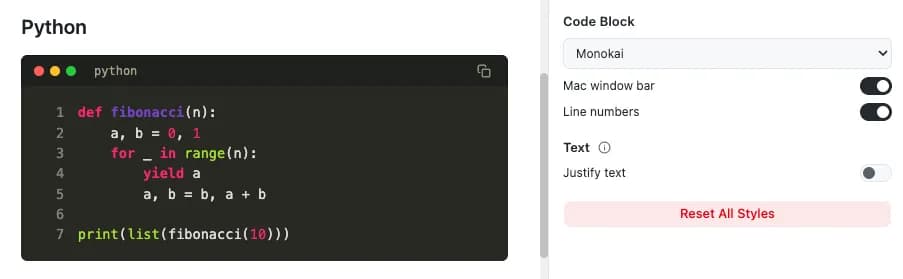
The Code Block section bundles three settings: a syntax highlight theme (GitHub, Atom One, Monokai, Nord, VS 2015 — applied in light and dark mode, with backgrounds to match), a Mac-style window bar, and line numbers. The default GitHub theme automatically switches to GitHub Dark when the app is in dark mode.
5. Custom CSS, with a real editor
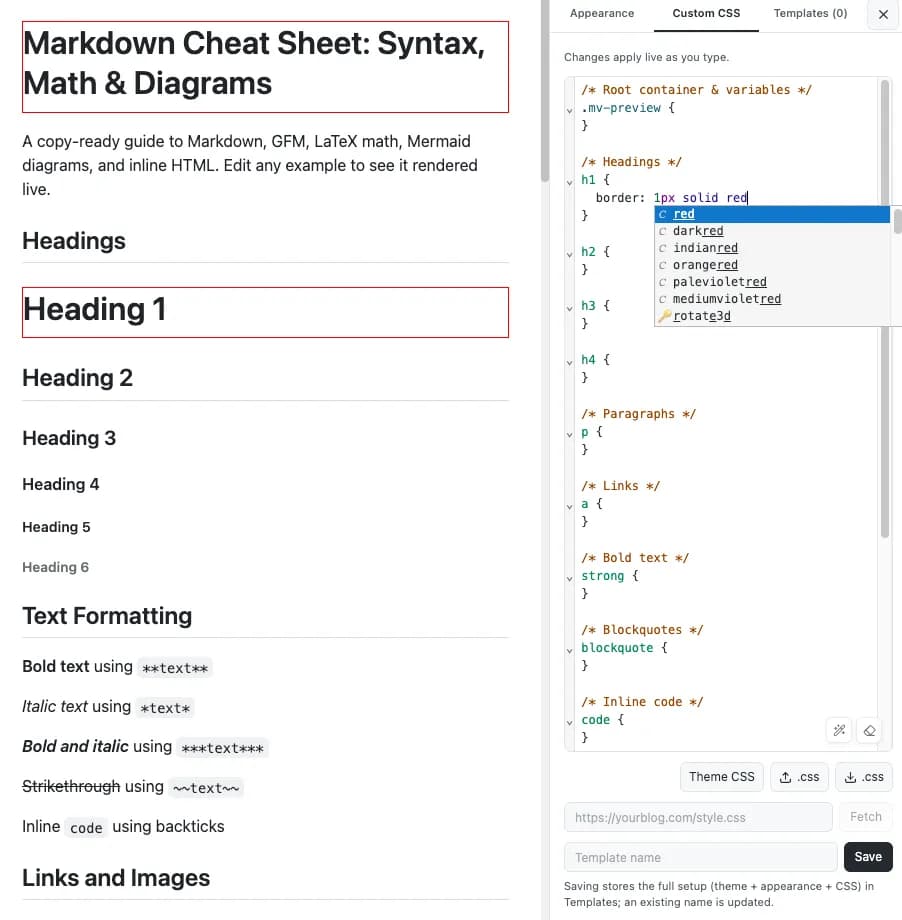
The Custom CSS tab is where “match my blog” gets literal. It is a CodeMirror editor with the workflow you know from dev tools:
- Live apply. CSS rules take effect as you type. A half-written
color:is simply ignored until it parses — no Apply button. - Autocomplete. Property and value suggestions as you type, plus code folding and one-click formatting (Shift+Alt+F).
- A starter skeleton. An empty editor opens with commented, empty rules —
h1,p,blockquote, and friends — so you can see what to target. - Highest priority. Your CSS rules are auto-scoped to the Markdown preview and injected above every theme, so
h1 { border-bottom: none }just works. - Theme CSS snapshot. One click copies the active theme’s compiled CSS into the editor as plain selectors, ready to fork.
6. Import your blog’s real CSS stylesheet
Already have the CSS? Import a local .css file into the custom CSS editor, or paste a direct stylesheet URL and press Fetch. Imported rules are sanitized (no @import, no remote url() calls) and scoped to the Markdown preview so they cannot leak into the app itself. Small classless frameworks such as sakura.css demo this nicely — one URL and the whole preview changes character.
7. Save the style as a template
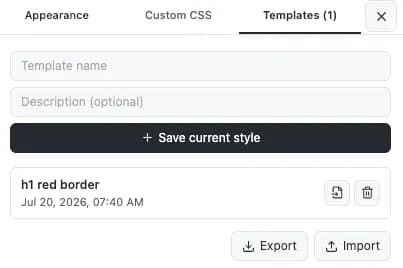
The Templates tab stores complete setups — theme, fonts, colours, code block settings, and custom CSS — under a name, with the last-modified time shown. Saving to an existing name updates it in place. Templates export and import as JSON, so a style can follow you across browsers or be shared with a teammate; the CSS alone can also be downloaded as a .css file.
Frequently asked questions
Do the styles change my Markdown file?
No. Themes and custom CSS only affect how the Markdown preview renders (and what you export). Your Markdown source stays plain text, so the same document can be re-styled at any time.
Are my custom CSS and templates uploaded anywhere?
No. Themes, custom CSS, and templates are stored in your browser’s local storage. Importing a stylesheet by URL goes through a small proxy that fetches the file and returns it to your browser — nothing about your document leaves the page.
Why does my custom CSS always win over the theme?
Rules from the Custom CSS tab are automatically scoped to the preview and injected with higher specificity than any built-in theme, so h1 { border: none } simply works — no !important required.
Can I reuse a style on another computer?
Yes. Save the setup as a template, export templates as JSON, and import that file in any other browser. The custom CSS alone can also be downloaded as a plain .css file.