Text to Markdown Converter

Paste rich text from Word, Google Docs, a web page or an email — or plain notes, bullet lists and spreadsheet rows — and get clean Markdown. This text to Markdown converter finds the headings, lists, tables, links and code blocks for you, entirely in your browser.

Paste rich or plain text here

Formatting copied from Word, Google Docs, web pages, and email is preserved. Plain notes, lists, and tab-separated rows are detected automatically.

Converted in your browser — nothing is uploaded

Want to see how detection works?

What Is the Text to Markdown Converter?

The text to markdown converter takes whatever you paste — formatted text from a document, or plain text with no markup at all — and gives back Markdown, reading the structure from the clipboard's HTML or from the layout of the text itself.
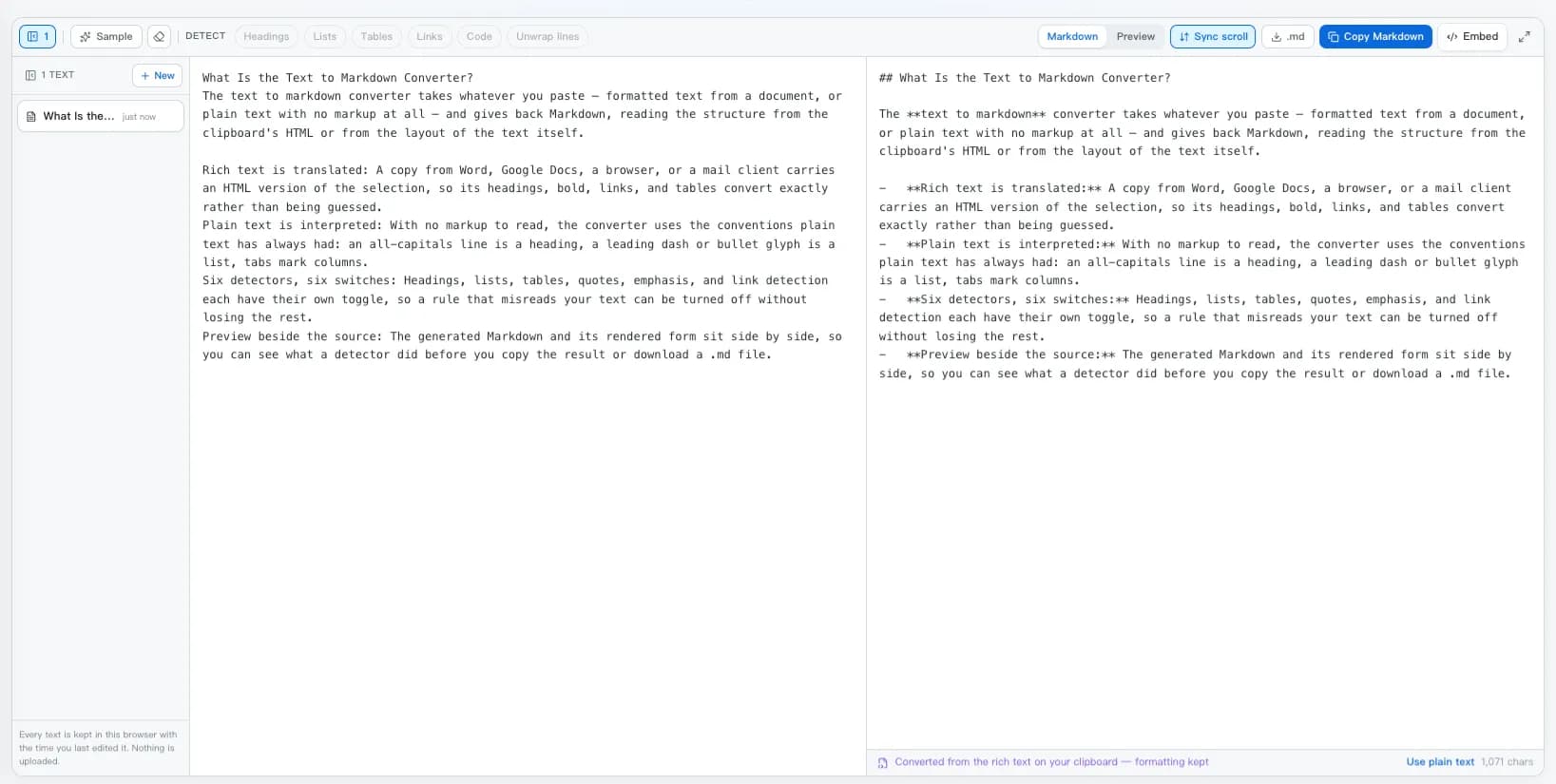
  • Rich text is translated: A copy from Word, Google Docs, a browser, or a mail client carries an HTML version of the selection, so its headings, bold, links, and tables convert exactly rather than being guessed.
  • Plain text is interpreted: With no markup to read, the converter uses the conventions plain text has always had: an all-capitals line is a heading, a leading dash or bullet glyph is a list, tabs mark columns.
  • Six detectors, six switches: Headings, lists, tables, quotes, emphasis, and link detection each have their own toggle, so a rule that misreads your text can be turned off without losing the rest.
  • Preview beside the source: The generated Markdown and its rendered form sit side by side, so you can see what a detector did before you copy the result or download a .md file.
The text to markdown converter with pasted plain text on the left and the generated Markdown on the right, above the detection switches.
Pasted text on the left, generated Markdown on the right, detection switches above.

How the Conversion Works

There are two very different jobs behind the phrase “text to Markdown”, and this converter does both from the same box. Formatted text already describes its own structure, so it is translated. Plain text does not, so its layout is read instead.

  • Rich text is translated: Word, Google Docs, browsers and mail clients put an HTML copy of your selection on the clipboard. That copy carries the real headings, bold, links and tables, so nothing has to be guessed.
  • Plain text is interpreted: With no tags to read, the converter falls back on the conventions plain text has always used: capitals for a heading, a bullet glyph for a list, tabs between columns.
  • Every rule is a toggle: Six detectors, six switches. Turn one off the moment it reads your text the wrong way — the rest of the conversion keeps working.
  • Nothing leaves the browser: Clipboard handling, conversion, preview and download all run on your device. No upload, no account, no queue.

Plain text in

MEETING NOTES

• Ship the docs site
• Move the API reference

Owner	Task	Due
Ada	Migration guide	Aug 12

Spec: https://example.com/spec

Markdown out

# Meeting Notes

- Ship the docs site
- Move the API reference

| Owner | Task | Due |
| --- | --- | --- |
| Ada | Migration guide | Aug 12 |

Spec: [example.com/spec](https://example.com/spec)
Table converter

Text to Markdown Table Converter

Copying cells out of Excel, Google Sheets, or Numbers puts tab-separated text on the clipboard. Terminal output and fixed-width reports line their columns up with spaces instead. Both are tables that have lost their syntax, and the text to Markdown converter puts it back.

  • Tabs — spreadsheet rows split on \t.
  • Aligned columns — two or more spaces between cells.
  • Pipes — a copied table missing its | --- | row gets one back.
  • Safe cells — a literal pipe inside a cell is escaped as \|.

Building a table from scratch, or need column alignment and row sorting? The Markdown table generator is the tool for that.

Copied from a spreadsheet

Region	Revenue	Notes
EMEA	12,400	Up 8%
APAC	9,150	Flat

GFM table out

| Region | Revenue | Notes |
| --- | --- | --- |
| EMEA | 12,400 | Up 8% |
| APAC | 9,150 | Flat |

Convert Text to Markdown in 4 Steps

From a messy paste to a clean .md file, without leaving the page or signing in.

1

Paste your text

Copy from Word, Google Docs, a web page, an email, a PDF, a spreadsheet, or your notes app, and paste it into the left pane.

2

Let the converter read the structure

Rich text is converted from the clipboard's formatting. Plain text is scanned for headings, lists, tables, links, and code, and the footer tells you what was found.

3

Adjust the detectors

Toggle any rule off if your text needs it — for example turn off Unwrap lines when the line breaks are deliberate, as in poetry or a log file.

4

Copy the Markdown out

Check the preview tab, then copy the Markdown or download it as a .md file for your README, blog, wiki, or vault.

Who Uses the Converter

The same conversion serves very different desks — publishing, engineering, personal notes, and prompts.

Writers moving drafts into a CMS

Turn a Word or Google Docs draft into Markdown for WordPress, Hexo, Astro, or Notion without hand-fixing every heading and list.

Developers writing READMEs

Convert a spec, an email thread, or terminal output into GitHub-ready Markdown, complete with tables and fenced code blocks.

PKM and note-taking

Structure meeting notes, clipped articles, and scratch text before they land in Obsidian, Logseq, or Bear as real Markdown.

Feeding text to an LLM

Markdown is the format models read most reliably. Convert messy text to Markdown first and a prompt keeps its headings, lists, and tables intact.

Structured Text for LLM Prompts

Language models read Markdown well: a # marks a section, a - marks an item, and a pipe table keeps rows and columns addressable — all in far fewer tokens than the HTML the same content usually arrives in. Pasting raw text loses those boundaries, and pasting raw HTML spends your context on markup.

Converting text to Markdown first is the cheap fix. For a longer look at cleaning a full web page down to prompt-ready Markdown, read HTML to Markdown for LLMs.

Text to Markdown Frequently Asked Questions

Straight answers about converting text to Markdown — rich text, plain text, tables, Python and JavaScript libraries, and privacy.

How do I convert text to Markdown?
Paste the text into the converter above. If your clipboard carries formatting — from Word, Google Docs, a web page, or an email — that formatting is converted directly into Markdown. If it is plain text, the converter reads its layout instead: capitalised lines become headings, bullet characters become list items, tab-separated rows become tables, and bare URLs become links. Then copy the Markdown or download it as a .md file.
Is this converter free?
Yes — free, with no sign-up, no watermark, and no limit on how much you convert. The whole conversion happens in your browser, so nothing is uploaded to a server.
How do I convert text to a Markdown table?
Paste the rows with the Tables detector on. Tab-separated rows (what you get when you copy cells out of Excel, Google Sheets, or Numbers), column-aligned text, and pipe-separated text that lost its delimiter row are all recognised. The first row becomes the header, the delimiter row is generated, and pipes inside cells are escaped. For building a table from scratch, use the Markdown table generator instead.
Can I paste from Word or Google Docs?
Yes. Both put an HTML version of the selection on the clipboard, so bold, italics, headings, lists, links, and tables convert directly rather than being guessed at. If you would rather convert a whole .docx file, use the Word to Markdown converter, which reads the file itself.
What happens to plain text with no formatting at all?
It goes through the structuring rules, which are deliberately conservative: ALL-CAPS lines and ===/--- underlines become headings, bullet and numbered lines become lists, tab or column-aligned rows become tables, indented runs become fenced code, and URLs become links. Everything else is left as written, because inventing structure is worse than leaving text alone.
Why did a line become a heading when it should not have?
The heading rule fires on short lines that have no lowercase letters and no closing punctuation, which is the usual plain-text convention. A line of acronyms can trip it. Turn the Headings detector off in the toolbar and the rest of the conversion carries on unchanged.
Can it fix text that was hard wrapped by an email client?
Yes, that is what the Unwrap lines toggle does. A line is treated as a wrap when it is long and does not end a sentence, so paragraphs are rejoined while deliberate short lines — addresses, poetry, log output — stay on their own lines. Turn it off if every line break matters.
How do I perform the conversion in Python?
For HTML input, markdownify and html2text are the two common libraries — markdownify(html) returns Markdown in one call. For documents such as .docx or .rtf, pypandoc wraps Pandoc and converts the file directly. There is a copy-ready snippet for each in the code section above.
What about JavaScript or the command line?
In JavaScript, turndown plus turndown-plugin-gfm is the standard choice, and it runs in the browser as well as in Node — this page uses it for rich-text pastes. On the command line, pandoc -t gfm converts almost any format and handles batch jobs in a shell loop.
Is Markdown better than plain text for LLM prompts?
Usually, yes. Markdown keeps headings, lists, and tables machine-readable while staying compact, so a model can tell a heading from a paragraph and a table row from prose. Converting text to Markdown before pasting it into a prompt preserves structure that would otherwise be flattened.
Can I convert Markdown back to plain text?
Yes, though it is a different job: open the Markdown in the editor and copy the rendered output, or export it as HTML and paste that as unformatted text. Stripping Markdown loses structure, which is why the reverse direction — text to Markdown — is the one worth automating.
Does the converter change my text?
It only adds Markdown syntax around what you pasted; no words are rewritten, reordered, or summarised. There is no AI in the loop, which is exactly why the output is predictable and repeatable.
Which Markdown flavor does it output?
GitHub Flavored Markdown: ATX headings, dash bullets, fenced code blocks, inline links, and GFM pipe tables. That is the flavor GitHub, GitLab, Obsidian, Notion imports, and most static-site generators expect.
Is my text uploaded anywhere?
No. Conversion, preview, copy, and the .md download all run locally in your browser, and your latest input is kept only in this browser's local storage.

Convert Your Text to Markdown Now

Scroll back up, paste your text, and copy clean Markdown — no sign-up, no upload, no waiting.