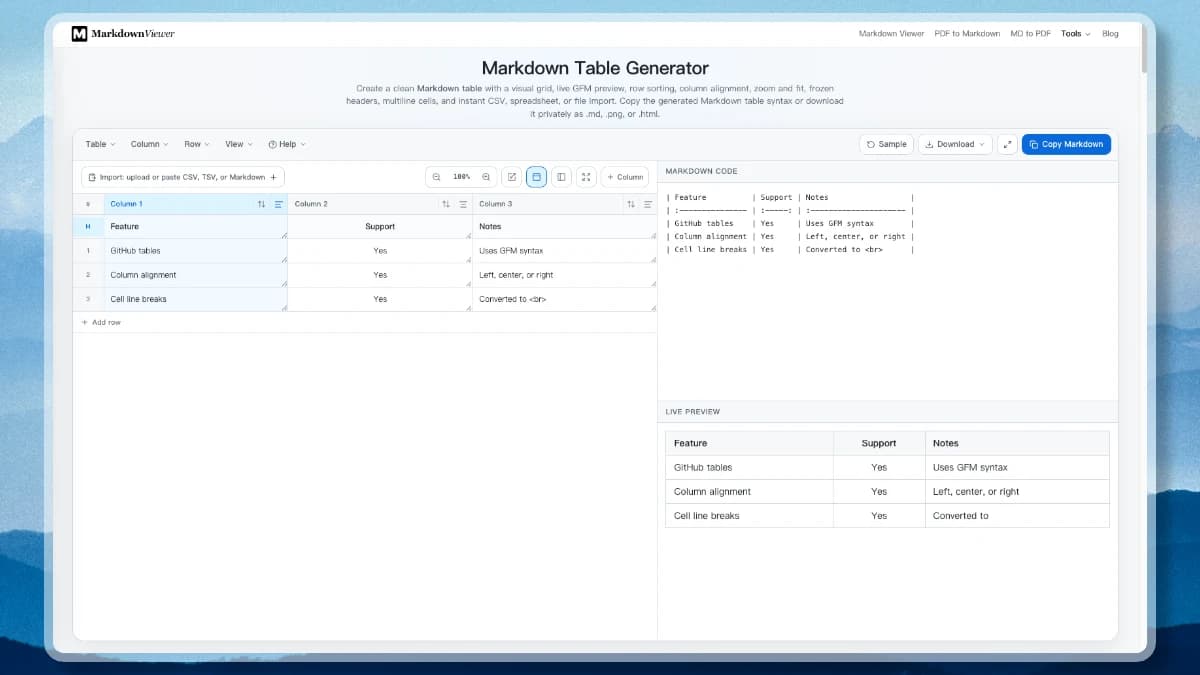
Create a clean Markdown table with a visual grid, live GFM preview, row sorting, column alignment, zoom and fit, frozen headers, multiline cells, and instant CSV, spreadsheet, or file import. Copy the generated Markdown table syntax or download it privately as .md, .png, or .html.
#
Markdown code
Live preview
The visual grid, menu bar, and live GFM preview in one workspace.
What Is the Markdown Table Generator?
The Markdown table generator is a free, browser-based grid editor for GitHub Flavored Markdown tables. Type in the cells, set the size from the Table menu, and the tool writes the pipes, the delimiter row, and the alignment colons for you — no counting dashes, no misaligned columns.
Menu-driven table editing:Set size from a grid picker, clear or transpose the table, and insert, move, or delete a single row or column from the Column and Row menus.
Import from anywhere:Drop a .csv, .tsv, .txt, or .md file on the editor, choose one from your device, or paste cells straight out of Excel, Google Sheets, or Numbers.
Alignment and sorting you can see:Click the align icon in any column header to cycle that column through :---, :---:, and ---:, or the sort icon to reorder the rows numerically or alphabetically.
Built for big tables:Zoom the grid or fit it to the pane, freeze the header row and first column while you scroll, and expand the table alone to fullscreen.
Copy, download, or keep editing:Check the live GFM preview, copy the generated syntax, or save the table as .md, .png, or .html. Your table and view settings are remembered locally on this device.
How Markdown Table Syntax Works
A GFM table has a header row, a delimiter row, and optional body rows. Pipes separate cells, while three or more dashes define every column. Leading and trailing pipes are recommended because they make the source easier to scan and less ambiguous.
Use | between every column.
Use --- in the delimiter row below each header.
Use :---, :---:, or ---: to control alignment.
Keep every row at the same logical column count.
Markdown table exampleGFM
| Name | Role | Score |
| :---- | :------: | ----: |
| Ada | Engineer | 10 |
| Linus | Reviewer | 9 |
Name
Role
Score
Ada
Engineer
10
Linus
Reviewer
9
Markdown Table Reference
Every piece of Markdown table syntax in one place — what you want, and exactly what to type for it. The two references the generator’s Help menu points to follow underneath.
What you want
What you write
Notes
Separate columns
| Name | Role |
One pipe between cells. The outer pipes are optional but conventional.
Start the table
| --- | --- |
The delimiter row sits directly under the header and needs one cell per column.
Align left
| :--- |
A colon before the dashes.
Align center
| :---: |
A colon on both sides.
Align right
| ---: |
A colon after the dashes — the usual choice for numbers.
Format text in a cell
| **bold** *italic* `code` |
Inline syntax works. Headings, lists, and fenced blocks do not.
Link in a cell
| [Docs](https://example.com) |
Ordinary inline link syntax, images too.
Line break in a cell
| First line<br>Second line |
A real newline ends the row, so a break needs the HTML tag.
Literal pipe character
| a \| b |
Backslash escape, or the | entity if a renderer strips it.
Title the table
### Quarterly results
GFM has no caption syntax — put a heading on the line above.
Merge cells
— not supported —
No colspan or rowspan. Use an HTML <table> where inline HTML is allowed.
GFM tables specification
GitHub Flavored Markdown adds tables to CommonMark as an extension. A compliant parser applies these rules:
Header row, then delimiter row
A table starts with a header row and the delimiter row immediately below it. Body rows follow until the first blank line or a line that cannot be part of the table.
Delimiter cells define the columns
Each delimiter cell holds one or more hyphens with an optional leading or trailing colon. The delimiter row must contain the same number of cells as the header row, or the block is not parsed as a table at all.
Row length is forgiving
A body row with more cells than the header is truncated; a row with fewer cells is padded with empty cells. Only the header and delimiter rows have to agree.
Outer pipes are optional
Leading and trailing pipes may be omitted, and spaces around cell content are trimmed. Keeping the outer pipes is the common convention because it makes the source easier to scan.
Cells hold inline content only
Emphasis, links, strikethrough, images, and code spans are parsed inside cells. Block structures — headings, lists, blockquotes, fenced code blocks — are not valid inside a cell.
The pipe escape is resolved first
\| works even inside a code span, because cells are split before inline parsing runs. It is the one escape that behaves this way.
Header A | Header B
-------- | --------
one | two | ignored
three
Outer pipes omitted, one extra cell dropped, and a short row padded — all still a valid table.
Markdown table syntax guide
The practical version: the conventions worth following, and where tables stop being portable.
Use three or more dashes
One hyphen is enough for a strict GFM parser, but three or more is the portable convention and what this generator writes.
Pipes do not need to line up
Column widths in the source have no effect on the rendered output. Padding cells to an even width is purely for readability — the generator does it for you.
Keep cells short
There is no column-width syntax, so a long paragraph in one cell stretches the whole table. Move detail into the text under the table and keep cells to a few words.
A caption is a heading
Writing ### Quarterly results above the table keeps the title semantic, linkable, and readable in a plain-text diff — which a caption element would not be.
Merged cells mean leaving Markdown
An HTML <table> with colspan or rowspan is the only option, and it renders only where your platform allows inline HTML. GitHub does; many static-site pipelines do not.
Tables are extended syntax
Core CommonMark has no table support, so confirm your renderer enables the GFM table extension before publishing.
A heading as the caption, inline formatting, a <br> line break, and an escaped pipe.
A Faster Way to Build Every Markdown Table
The visual generator handles repetitive syntax while keeping the generated source readable, portable, and ready for common GFM renderers.
Visual Markdown Table Generator
Edit every cell in a spreadsheet-style grid. Use the Table, Column, and Row menus to set the size from a grid picker, insert, move, delete, transpose, or clear without counting pipes and dashes by hand, and expand the workspace to webpage fullscreen for wide tables.
Upload or Paste Excel, CSV, and TSV Data
Drop a .csv, .tsv, .txt, or .md file anywhere on the editor, pick one from your device, or paste cells copied from Excel, Google Sheets, Numbers, or LibreOffice. Delimiters and existing table syntax are detected automatically.
Left, Center, and Right Alignment
Click the align icon in a column header to cycle left, center, and right, or pick an alignment from the Column menu. The generator writes the correct colon placement in the delimiter row.
Multiline Cells and New Lines
Enter more than one line in a cell. The generator converts each new line to a compatible <br> tag while preserving the rest of the row.
Inline Markdown Formatting
Use **bold**, *italic*, `inline code`, links, and escaped pipe characters inside cells, then confirm the result in the live GFM preview.
Sort Table Rows by Any Column
Click the sort icon in a column header to reorder the body rows A → Z or Z → A. Columns of numbers sort numerically, so 9 lands before 10, and the header row always stays pinned in place.
Zoom, Fit, and Fullscreen
Scale the grid from 50% to 200%, or switch on fit to width and a wide table shrinks to the pane and re-fits whenever you add a column. Expand the whole workspace, or send the grid alone fullscreen and press Esc to return.
Freeze the Header Row or First Column
Pin the header row while you scroll down a long table, pin the first column while you scroll across a wide one, or pin both so you never lose track of what a cell means.
Private Browser-Based Editing
Your data stays inside your browser, including the .md, .png, and .html downloads. There is no account, upload queue, server conversion, or hidden copy of your spreadsheet content.
Create a Markdown Table in 4 Steps
Go from spreadsheet cells or blank rows to a finished result without installing an editor extension.
1
Enter, paste, or upload table data
Start with the sample, edit the visual grid, drop a CSV, TSV, TXT, or Markdown file on the editor, or paste spreadsheet cells and existing GFM table syntax.
2
Format, sort, and arrange
Set the grid size from the Table menu, insert, move, or delete rows and columns, sort the rows by any column, choose each column’s alignment, and use line breaks or inline formatting where needed.
3
Zoom, freeze, and expand while you work
Use the View menu to zoom the grid or fit it to the pane, freeze the header row and first column so large tables stay readable, and open the table alone in fullscreen when you need the whole window.
4
Preview, copy, or download
Inspect the live preview, copy the generated syntax, or download the table privately as .md for GitHub and VS Code, .png to drop into a slide or issue, or .html as a styled standalone page.
Working With Large Markdown Tables
Fifteen columns and a hundred rows stop being comfortable in a plain text editor. These controls keep a big grid readable while the generated Markdown stays exactly as portable as before.
Sort rows by any column
Click the sort icon in a column header to order the body rows, and click again to flip the direction. Numbers compare as numbers — 9 before 10, not after it — while text uses a natural order that keeps “Item 2” ahead of “Item 10”. Blank cells collect at the bottom and the header row never moves.
Sorting rewrites the row order in the generated Markdown, because a rendered GFM table has no sortable headers of its own.
Zoom out, or fit to the pane
Scale the grid between 50% and 200% from the toolbar or the View menu. Fit to width measures the table and shrinks it just enough to remove the horizontal scrollbar, then re-fits by itself when you add a column, import a wider file, or resize the window.
Zoom only affects the editor. The Markdown output, the preview, and every download are unchanged.
Freeze the header row and first column
Pin the header row so column names stay put while you scroll down a hundred rows, and pin the first column so labels stay put while you scroll across fifteen. Both toggles live in the grid toolbar and the View menu, and both are remembered on your device.
Freezing is an editing aid: it changes what stays on screen, never the table syntax.
Fullscreen, with or without the preview
Webpage fullscreen expands the whole workspace — grid, Markdown, and live preview. Table fullscreen hands the entire window to the grid alone, which is the fastest way to fill in a wide sheet. Escape returns you to the page either way.
Copy Markdown and Download stay available in both fullscreen modes.
Advanced Markdown Table Formatting
These patterns answer the most common questions about center alignment, multiline cells, titles, embedded formatting, and merged cells.
Center a Markdown Table Column
Place a colon on both sides of the delimiter dashes: :---:. A colon only on the right creates right alignment, which is useful for prices, totals, and other numeric tabular data.
| :--- | :---: | ---: |
Markdown Table Multiline and New Line
A literal return breaks the row. Use <br> for a visual line break when the target renderer allows inline HTML. The generator applies this workaround whenever a cell contains multiple lines.
| First line<br>Second line |
Add a Markdown Table Title
GFM does not include caption syntax. Put a descriptive heading directly before the generated table so the title remains semantic, linkable, and compatible with README files and documentation sites.
### API endpoints
Markdown Table Merge Limitation
Standard GFM table syntax cannot merge rows or columns. Use an HTML table with colspan or rowspan only when your publishing platform explicitly permits HTML; otherwise redesign the data as simpler tables.
<td colspan="2">Merged</td>
Platform compatibility
GitHub, VS Code, and GFM Support
The generated output follows GitHub Flavored Markdown conventions. It works well in GitHub README files, issues, pull requests, VS Code preview, and many static-site generators that enable the GFM table extension.
Tables are extended syntax rather than part of original Markdown, so always test the result in the final renderer when publishing to a different platform.
GitHub Markdown Table
Supported through the GFM table extension, including inline formatting, escaped pipes, and per-column alignment.
VS Code Markdown Table
Paste the generated source into a .md file and open the built-in side-by-side Markdown preview to verify the rendered result.
CommonMark and Other Renderers
Core CommonMark does not define table syntax. Your parser must enable GFM or another compatible table extension.
Your Markdown Table Stays in Your Browser
Grid edits, imported spreadsheet values, uploaded files, preview HTML, and downloads are all processed on your device. Browser storage remembers your latest table on the same device, and no table content is submitted to an API.
No sign-up and no account required
No server upload and no conversion queue
Uploaded .csv, .tsv, and .md files are read locally
No watermark on the generated Markdown
Markdown Table Frequently Asked Questions
Straight answers about Markdown table syntax, generators, alignment, multiline cells, merged cells, titles, GitHub, and VS Code.
How do I create a Markdown table?
Create a header row with pipe characters between columns, add a delimiter row containing at least three dashes for every column, and then add the body rows. The generator above creates this syntax automatically as you edit the visual grid.
How does the Markdown table generator work?
Edit cells directly or paste spreadsheet, CSV, TSV, or existing table data. The tool normalizes the rows, escapes pipe characters, generates the delimiter row, renders a live preview, and lets you copy the syntax or download the table as .md, .png, or .html.
Can I upload a CSV or Excel file to create a Markdown table?
Yes. Drop a .csv, .tsv, .txt, or .md file anywhere on the editor, or use Choose file in the import panel. Files are read in your browser, and the delimiter is taken from the extension. For an .xlsx workbook, copy the cells in Excel and paste them instead, because spreadsheet paste arrives as TSV.
How do I resize or transpose a Markdown table?
Open the Table menu, hover Set size, and pick the columns and rows in the grid picker, or type an exact size and press Enter. The same menu clears every cell or transposes the table so the first column becomes the header row. The Column and Row menus insert, move, and delete a single column or row.
How do I center text in a Markdown table?
Place a colon on both sides of the dashes in the delimiter cell, such as :---:. Use ---: for right alignment and :--- for left alignment. In this generator, click the align icon in a column header to cycle left, center, and right, or use the Column menu.
How do I sort a Markdown table by a column?
Click the sort icon in any column header to reorder the body rows, and click again to reverse the direction. The Column menu has the same two commands. A column whose filled cells are all numbers sorts numerically, everything else sorts as natural-order text, blank cells sink to the bottom, and the header row is never moved.
Can a rendered Markdown table be sorted by the reader?
No. GitHub Flavored Markdown produces a static table with no sortable headers, and GitHub does not add click-to-sort behavior. Sort the rows in the source instead — this generator reorders them for you before you copy the syntax.
Can I freeze the header row or the first column while editing?
Yes. The View menu and the grid toolbar both toggle Freeze header row and Freeze first column, so the header stays visible while you scroll down and the first column stays visible while you scroll across. Both preferences are remembered on your device.
How do I zoom the table editor or fit a wide table on screen?
Use the zoom controls above the grid, or the View menu, to scale the editor between 50% and 200%. Fit to width shrinks a wide table until it fits the pane and keeps re-fitting as you add columns or resize the window. You can also open the table alone in fullscreen for maximum room.
Can a Markdown table contain multiline text or a new line?
A literal line break normally ends the current row, so standard GFM does not support block-level multiline content inside a cell. A practical workaround is an HTML <br> tag. This generator converts line breaks in cells to <br> automatically.
Can I merge Markdown table cells?
No. GitHub Flavored Markdown does not define colspan or rowspan syntax, so a normal table cannot merge cells. If merged cells are essential and your renderer allows HTML, write an HTML <table> with colspan or rowspan instead.
How do I add a Markdown table title?
GFM has no native table caption syntax. The portable solution is to write a heading line, such as ### Quarterly results, immediately before the table in your document. The generator outputs the table itself, so paste it under the heading you already use.
Does a Markdown table work on GitHub?
Yes. GitHub Flavored Markdown includes a table extension with one header row, one delimiter row, and zero or more body rows. It also supports left, center, and right column alignment plus inline formatting inside cells.
Can I use the generated Markdown table in VS Code?
Yes. Save or paste the generated syntax into a .md file and open the built-in VS Code Markdown preview. Extensions such as markdownlint or dedicated table formatters can add local linting and source-alignment commands.
What formatting works inside Markdown table cells?
GFM parses inline content inside each cell, including emphasis, links, strikethrough, and inline code. Block-level structures such as headings, lists, quotes, and fenced code blocks are not valid inside a standard table cell.
Can I download a Markdown table as an image or an HTML file?
Yes. Open the Download menu and choose .md for the table syntax, .png for a 2× image of the rendered table, or .html for a styled standalone page. All three files are produced in your browser.
Is my Markdown table data uploaded?
No. Editing, importing, generating, previewing, copying, and downloading all run locally in the browser. Your content and pasted spreadsheet values are not sent to an application server.
Create Your Markdown Table Now
Return to the visual Markdown table generator, paste your data, choose alignment, and copy clean GFM syntax in seconds.