Image to Markdown Converter

Convert image to Markdown with private in-browser OCR. This free image to Markdown converter turns screenshots, PNG, JPG, WebP, GIF, and scanned pages into editable Markdown headings, lists, and tables without uploading images.

What Is the Image to Markdown Converter?

The image to markdown converter reads the text in a screenshot, scan, or photo and writes it back out as Markdown — headings, lists, and tables included — using OCR that runs inside your own browser rather than on a server.
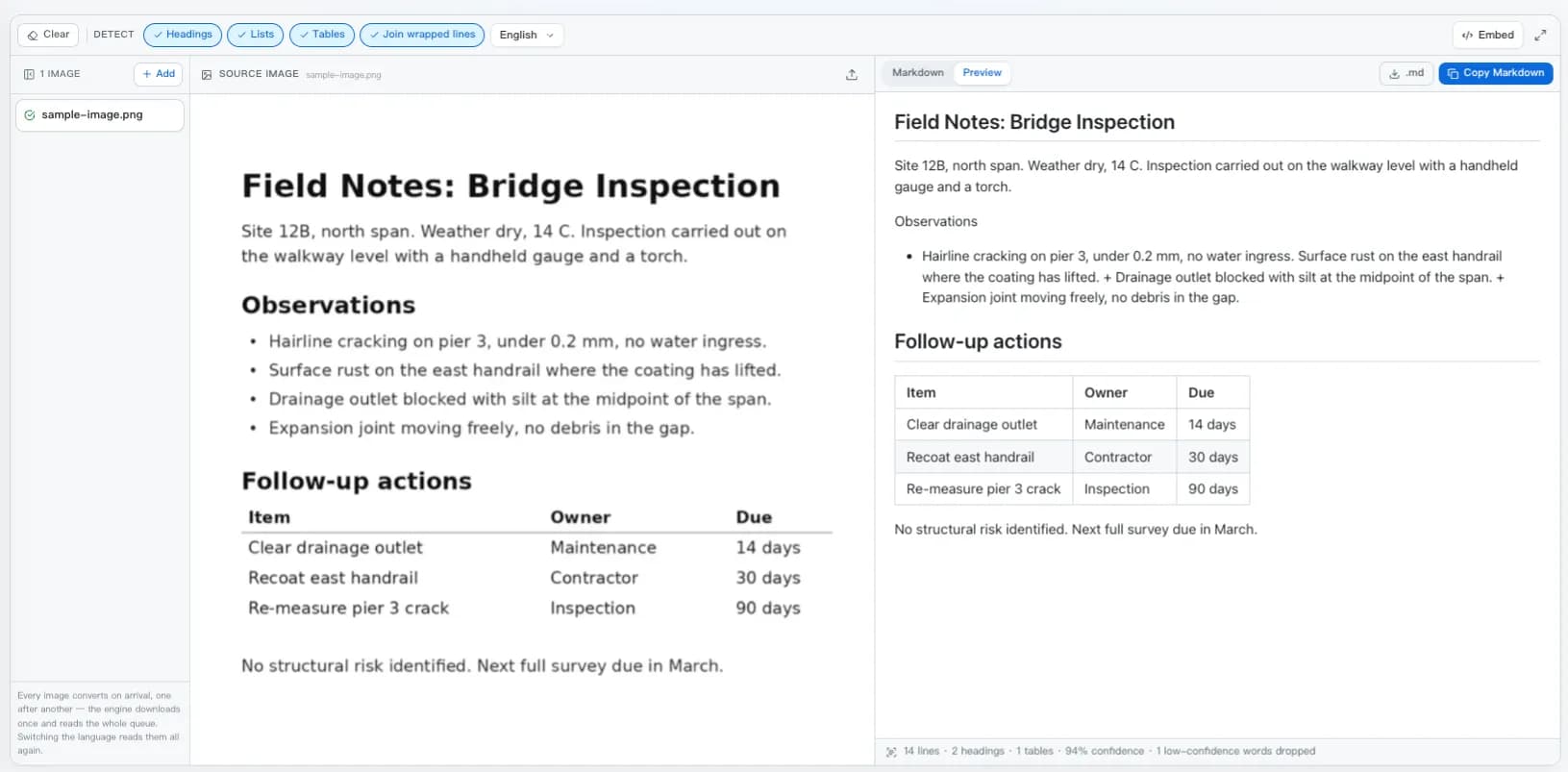
  • Structure, not just characters: Type size becomes heading levels, bullet glyphs become list items, and words that line up in columns across several rows become a GFM table.
  • Paste, drop, or open a batch: Ctrl+V a screenshot, drag files in, or browse for up to twelve images. Conversion starts on arrival, one engine load reads the whole queue, and the finished set downloads as a ZIP.
  • Twelve languages, mixed scripts: English on its own or paired with Chinese, Japanese, Korean, Arabic, Russian, and the major European languages, so a bilingual page is read in one go.
  • Confidence you can check: Every conversion reports its average confidence and how many uncertain words were dropped, next to the rendered preview of the result.
The image to markdown converter with a scanned page on the left and the recognised Markdown rendered on the right, above a confidence readout.
A scanned page, the reconstructed Markdown, and the confidence the engine reports for it.

How Image to Markdown Conversion Works

Four stages run between dropping a picture in and copying Markdown out. Only the first two are OCR; the interesting part is what happens to the coordinates afterwards.

  1. 1The engine loads once, in your tabTesseract's WebAssembly core and the language data you picked are fetched the first time an image lands, then cached by the browser. The whole queue is read with that one load.
  2. 2Recognition returns words and boxesEach word comes back with its text, its confidence, and the rectangle it occupies. Low-confidence fragments are dropped rather than guessed at, and counted for you.
  3. 3Geometry becomes structureLine heights are compared against the body text to find headings, leading glyphs and indents to find lists, and repeated x positions across rows to find table columns.
  4. 4Markdown is emitted, and stays adjustableThe layout is kept in memory, so toggling heading, list, or table detection re-derives the Markdown in milliseconds instead of reading the image again.
What the OCR pass seesin
"Follow-up actions"   18pt bold   y=557
"Item"  "Owner"  "Due"    11pt       y=599
"Clear drainage outlet"  …  x=372, 723, 938
What the converter writesout
## Follow-up actions

| Item | Owner | Due |
| --- | --- | --- |
| Clear drainage outlet | Maintenance | 14 days |

An Image to Markdown Tool That Keeps the Structure

Recognition is only half the job. These are the parts that decide whether you get usable Markdown or a paragraph of run-together text.

Conversion Starts on Paste

Snip a region, press Ctrl+V anywhere on the page, and image to markdown conversion begins on whatever is on your clipboard. There is no Convert button, because an OCR tool only ever had one thing to do with a picture.

A Queue, and One ZIP at the End

Drop up to twelve pictures and they line up and convert one after another, sharing a single engine load. Each keeps its own Markdown, and once more than one is done you can take the whole set as a ZIP of .md files.

Headings From Type Size

Text noticeably larger than the body of the page becomes a # heading at the matching level. Size ratio drives the decision, so the same rules work on a phone photo and a 600 DPI scan.

Tables Rebuilt From Column Positions

Rows whose words land in the same vertical bands across several lines are reassembled as a GFM pipe table — the hardest part of any image to markdown conversion, and the one worth checking.

Lists and Paragraphs, Not Line Soup

Bullet glyphs and 1. / a) markers become nested list items. Lines broken by the page margin are joined back into paragraphs, words hyphenated across a break are rejoined, and a wide vertical gap starts a new block.

Multilingual Recognition

English plus Chinese, Japanese, Korean, Russian, Arabic and the major European languages, in mixed-script pairs so a bilingual document is read in one pass. Switching the language reads every open image again in it.

Confidence You Can See

The converter reports its own average confidence and how many uncertain words it discarded, so you know whether to trust the result or rescan at a higher resolution.

Adjust Without Re-Scanning

Recognition runs once. Toggling heading, list, or table detection re-derives the Markdown from the stored layout in milliseconds instead of reading the image again.

The Image Never Leaves Your Browser

Recognition runs locally on your own machine. Unlike hosted OCR services, your screenshot, contract scan, or whiteboard photo is never transmitted to or stored on a server.

What It Is Good At, and What It Is Not

OCR quality varies enormously with the source. Knowing where image to markdown conversion struggles saves you more time than any feature list.

Screenshots of rendered textExcellent
High-resolution scans of printExcellent
Straight phone photos of a pageGood
Column-aligned tablesUsually good — verify
Code with l/1 and O/0Needs proofreading
Skewed or shadowed photosUnreliable
HandwritingPoor
Mathematical formulasNot supported

Treat every conversion as a first draft. OCR does not tell you when it has guessed wrong, so proofread against the original image before the text goes anywhere that matters.

Convert an Image to Markdown in 3 Steps

From a screenshot on your clipboard to structured Markdown, without an account or an upload.

1

Add one image or twelve

Press Ctrl+V to paste a screenshot, drag files onto the page, or click to browse. PNG, JPG, WebP, and GIF all work, up to 15 MB each, and every image you add joins the queue on the left.

2

Watch it read them

Conversion starts by itself. Each image is read in turn by one shared engine — the row in the list spins while its image is being read and ticks when it lands, a scan line sweeps the picture in front of you, and one line says when the queue is done. Set the language first if the page is not English, or switch it afterwards and everything is read again.

3

Check the structure, then copy

The rendered preview opens beside the original image; switch to Markdown for the source, toggle heading, list, and table detection until the structure matches, then copy it, download a .md file, or take the whole batch as a ZIP.

Image to Markdown Questions

Answers on accuracy, privacy, languages, tables, code, handwriting, and offline use.

How do I convert an image to Markdown?
Paste a screenshot with Ctrl+V, or drop one or more image files onto the page. That is the whole instruction — conversion starts on its own, with no Convert button to press. The text is recognised in your browser and rebuilt as Markdown with headings, lists, and tables inferred from the layout, shown as a rendered preview next to the picture. Copy the result, download it as a .md file, or download a batch as a ZIP.
Can I download every converted image at once?
Yes. As soon as two or more images have been converted, a ZIP button appears in the toolbar and packages every result as one archive of .md files, named after the images they came from. Two screenshots that share a name are numbered rather than overwriting each other. The ZIP is built in your browser, like everything else on the page.
Is my image uploaded anywhere?
No. The recognition engine runs inside your browser, so the picture itself is never transmitted, queued, or stored on a server. Be aware of one detail we would rather state plainly: the engine and its language data are downloaded from a public CDN the first time you convert, and cached by your browser afterwards. That download contains no part of your image.
How accurate is the OCR?
On clean, high-resolution screenshots of printed or rendered text, accuracy is high — often near perfect for body text. On photographs, low-resolution captures, skewed pages, unusual fonts, or handwriting it drops sharply. The converter reports its average confidence so you are not guessing. Always proofread the output before relying on it.
Can it read handwriting?
Not reliably. The engine is built for printed and rendered text. Neat block capitals sometimes come through; ordinary cursive generally does not. For handwritten notes, expect to do substantial correction, and treat the result as a starting point rather than a transcript.
Does it convert tables in an image to Markdown?
Yes, by looking at geometry rather than gridlines. When at least three consecutive lines split into the same number of cells at the same horizontal positions, they are rebuilt as a GFM pipe table. Dense tables, merged headings, and columns separated by very little whitespace are where this is most likely to need a fix by hand — check the result against the image.
Can it extract code from a screenshot?
The text comes through, but not as a fenced code block, and this is a genuine limitation worth knowing about. OCR frequently confuses characters that matter enormously in code — l against 1, O against 0, curly against straight quotes — and it does not preserve exact indentation. Use it to avoid retyping, then read the code carefully before you run it.
Are mathematical formulas converted to LaTeX?
No. Recognising a formula's two-dimensional structure and re-expressing it as LaTeX is a different class of model from text OCR, and this converter does not attempt it. A formula will come out as a rough, usually incorrect line of characters. For equations, a dedicated maths-recognition tool is the right choice.
Which languages are supported?
English on its own, or English paired with Simplified Chinese, Traditional Chinese, Japanese, Korean, French, German, Spanish, Portuguese, Russian, Italian, or Arabic. Pairing means a bilingual page is read in a single pass. Each extra language adds to the one-time download.
Why is the first conversion slow?
The recognition engine and its language model are several megabytes and are fetched on first use. After that your browser caches them and subsequent conversions start immediately. Recognition itself typically takes a few seconds and scales with image size.
How can I get better results?
Give it more pixels: a 2x screenshot beats a downscaled one. Crop to just the region you need, straighten a skewed photo before converting, prefer flat even lighting over a shadow across the page, and pick the right language. Dark-mode screenshots of light text usually work fine.
Can I batch convert many images?
Up to twelve at a time. Drop or paste several images and they queue up, each becoming a row in the list on the left with its own Markdown, and one engine load reads the whole queue — including anything you drop while it is still working. Switch between the images to check each result, then take them all as a ZIP. For a large archive of scans, a server-side OCR pipeline or an API-based service still gives you the throughput, retries, and logging that a browser tab cannot.
Does it work offline?
After the engine and the language data you use have been cached, yes. The first conversion needs a connection to fetch them.

Convert an Image to Markdown Now

Scroll back to the converter, paste a screenshot with Ctrl+V, and turn text you cannot select into Markdown you can edit.