Markdown to Beamer: LaTeX slides from the outline you already have.
A talk is an outline with a title page. Write the outline in Markdown, and the headings decide where the slides break — the same rules Pandoc uses, without writing a single \begin{frame}.
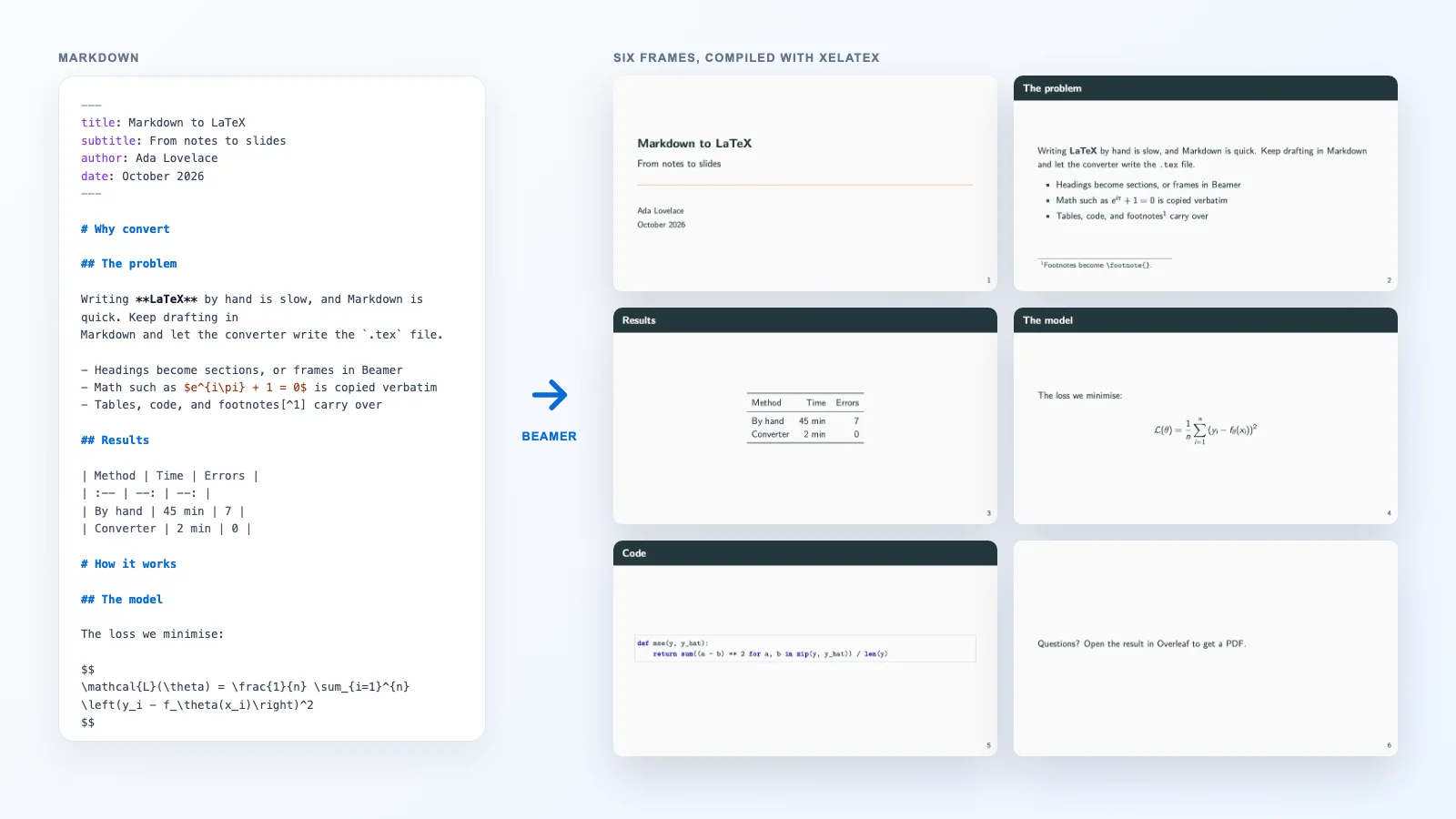
Beamer is the LaTeX class behind most conference and lecture slides in the sciences. Its output is excellent — real maths, consistent typography, a PDF that projects the same everywhere — and its input is tedious: every slide is a frame environment, every list an itemize, and a slide with code fails until you remember [fragile]. Yet the content of a talk is already an outline. Writing that outline in Markdown and letting a converter produce the Beamer source keeps the output and drops the boilerplate.
The two-minute version
- Write the talk as Markdown: a YAML header for the title page,
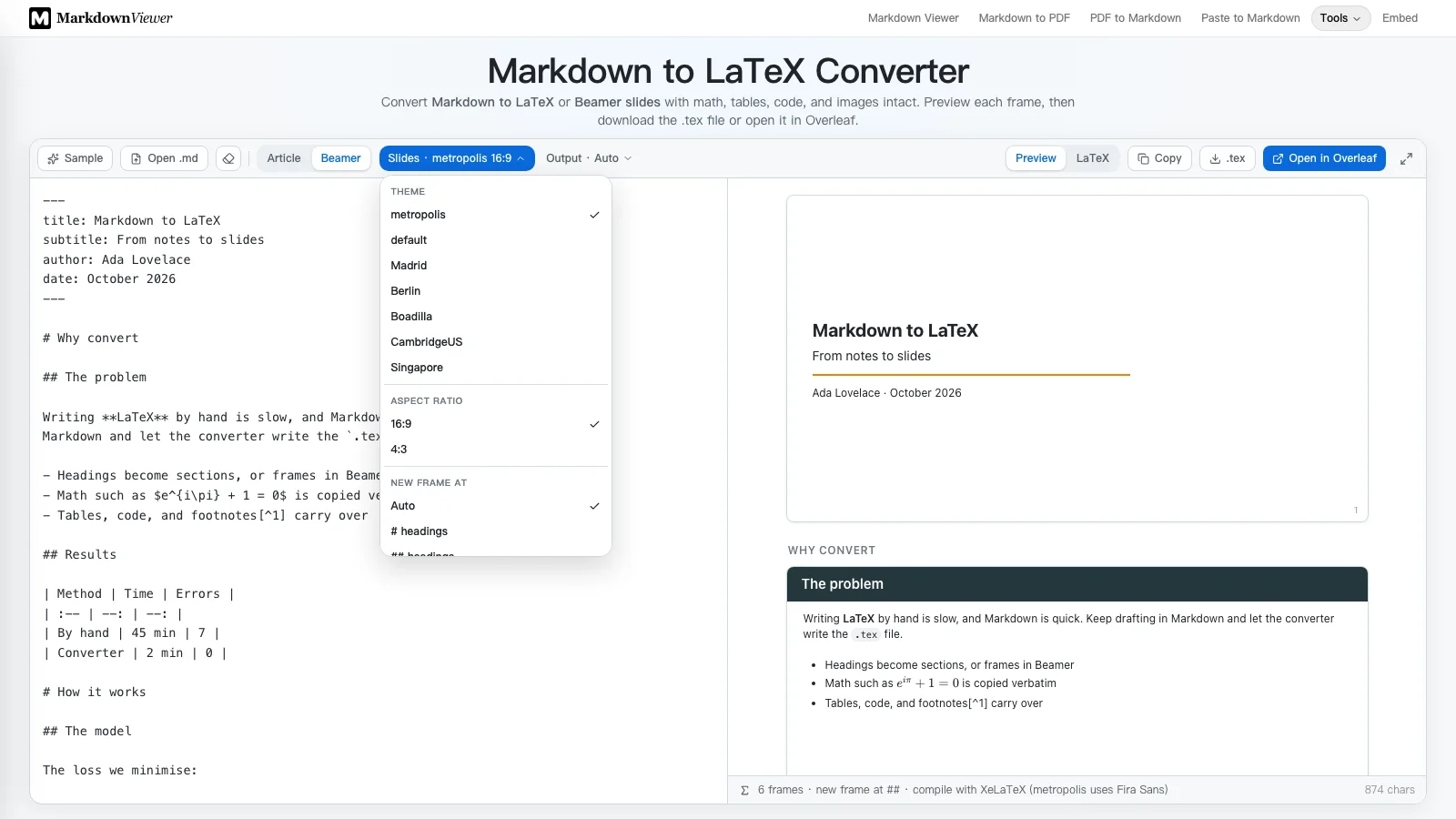
#headings for sections,##headings for slides. - Paste it into the Markdown to LaTeX converter and switch to Beamer.
- Read the frame preview on the right; each card is a slide, and clicking one jumps to its line in the source.
- Choose a theme and aspect ratio from the Slides menu, then download the
.texor click Open in Overleaf.
How headings become frames
Everything hinges on one setting, the slide level: the heading level that starts a new frame. Headings above it become sections, headings below it stay inside a frame. With the level on Auto the converter applies Pandoc’s rule: the slide level is the shallowest heading that is followed directly by content rather than by another heading.

In practice that gives four rules worth remembering:
- Above the slide level — usually
#— a heading becomes\section(or\subsection). It appears in the outline and in navigation bars, but makes no slide of its own. - At the slide level a heading starts a frame and becomes its title.
- Below the slide level a heading opens a Beamer
blockinside the current frame, which is how you get a titled box on a slide. - Content before any slide heading still gets a frame, without a title, so nothing is dropped.
Auto suits almost every outline. Fix the level when you want the structure read differently — at level 1, each # section becomes one slide and its ## headings turn into blocks; at level 3, every ### gets a slide of its own.
The title page comes from YAML
A YAML block at the very top of the file fills Beamer’s title fields, and the converter adds a \titlepage frame first:
---
title: Quarterly review
subtitle: Q3 2026
author: Ada Lovelace
date: October 2026
---

# Results

## Revenue

- Up 12% on last quarter
- Margin $m = 0.31$

## The code

```python
print("fragile frame")
```

---

Questions?title, subtitle, author (a single name or a list), date and institute are read. Without a YAML title, a single # heading on the first line is taken as the title instead — handy for an outline that starts with its name. The Outline frame option adds a table of contents after the title page, and Section pages adds a divider slide at every section.
Breaking a slide without a heading
A horizontal rule — --- on its own line — starts a new frame with no title, which is what you want for a full-slide quotation, an image, or a closing “Questions?”. Leave a blank line above it. Markdown reads --- directly under a line of text as an underline that turns that line into a heading, so the blank line is what makes it a break. If you use rules as decoration instead, switch off --- starts a new frame.
Code on a slide needs [fragile]
This is the error that catches everyone writing Beamer by hand. Beamer collects a frame’s body as a macro argument before it typesets it, and verbatim environments such as lstlisting cannot live inside an argument: they need to change how TeX reads characters, which is too late by then. The fix is the [fragile] option, which makes Beamer write the frame to a temporary file and read it back.
The converter adds [fragile] to every frame that contains a fenced code block and to none of the others, which is also what Pandoc does. Tag the fence with its language — ```python — and the listing is highlighted; the listings package knows Python, C, C++, Java, Bash, SQL, R, MATLAB and a few dozen more.
Math, tables and images on a slide
Maths is copied into the frame exactly as typed, so $…$ and $$…$$ behave as they would in a paper. Tables become booktabs tabular environments wrapped in adjustbox{max width=\linewidth}, so a wide table shrinks to fit the slide instead of running off it. Images are centred and capped at about two thirds of the slide height, and each is guarded by \IfFileExists: if the file is missing the slide shows a framed note and the deck still compiles. Use PNG, JPG or PDF — LaTeX cannot include SVG or WebP directly.
Choosing a theme
Beamer ships with dozens of themes; the converter offers the seven people actually use. The same frame in six of them:
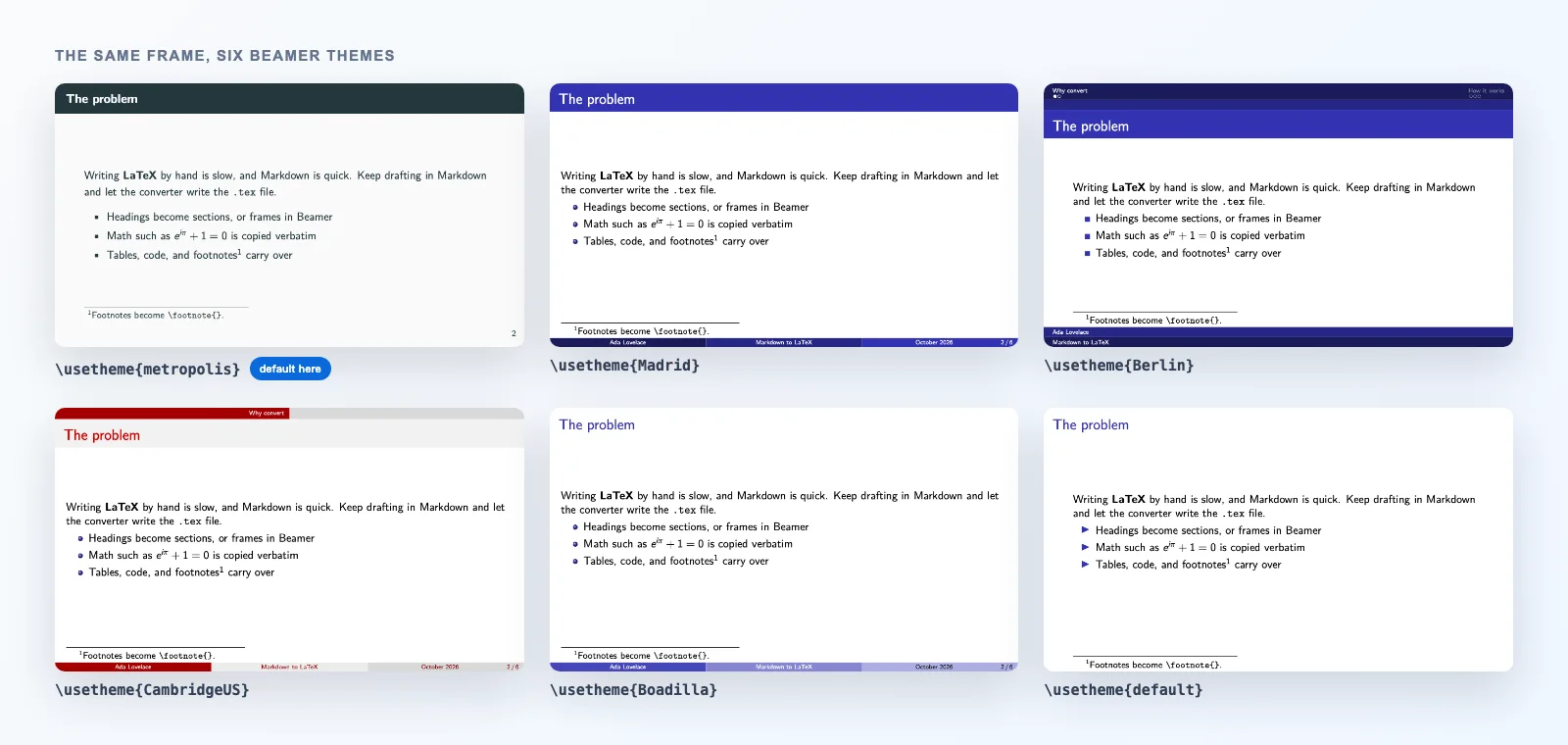
\usetheme lines.metropolis is the default here because it is flat, high-contrast and readable from the back of a room. It uses the Fira fonts, so the converter picks XeLaTeX for it; with pdfLaTeX it still compiles in a fallback font. Madrid is the classic look, with a coloured title bar and a footer carrying author, title and page number. Berlin adds a navigation bar of sections and dots at the top. For every theme except metropolis the converter removes Beamer’s navigation symbols, which almost nobody clicks. Pick 16:9 for modern projectors and 4:3 for older rooms.
Revealing a list one item at a time
Turn on Reveal lists item by item and each list is written as \begin{itemize}[<+->]. Beamer then shows one more item per click. Each step is a separate page in the PDF, so a five-item list becomes five pages — expected, and the reason to use it for the slides where pacing matters rather than everywhere.
When a frame is too long
A slide holds far less than a page. The converter estimates the height of each frame and adds a note when one looks likely to overflow, naming the frame. Splitting it with another ## heading or a --- is almost always better than shrinking the text; if the content really is one continuous list, add [allowframebreaks] to that frame in the .tex and Beamer will continue it on a second slide.
The same deck with Pandoc
Because the converter follows Pandoc’s rules, the Markdown you write here also works on the command line, which is the better choice for a deck rebuilt in CI or kept with its data:
pandoc slides.md -t beamer -o slides.pdf \
  --slide-level=2 \
  -V theme:metropolis -V aspectratio=169 \
  --pdf-engine=xelatex
Add -i for incremental lists. Pandoc also understands a few extensions the browser converter does not yet handle: ::: columns for two-column slides, ::: notes for speaker notes, and . . . for a pause. If you need those, start here to get the structure right, then move the Markdown to Pandoc.
Compiling: pdfLaTeX, XeLaTeX or Overleaf
The status bar under the preview names the engine the .tex expects. Most decks compile with pdfLaTeX; metropolis prefers XeLaTeX; and any Chinese, Japanese or Korean text switches the class to ctexbeamer with the Fandol fonts, which also needs XeLaTeX. If you have no TeX installation, Open in Overleaf creates a project with the right compiler already selected, and images referenced by URL are sent along with it.
Writing a paper rather than a talk? The same converter has an Article mode, and Markdown vs LaTeX explains when drafting in Markdown pays off.
Splitting, preview and the .tex are all produced in your browser; your slides are not uploaded. Open in Overleaf is the one action that sends the generated LaTeX, and the addresses of remote images, to Overleaf.
Frequently asked questions
How do I convert Markdown to Beamer slides?
Paste the Markdown into the Markdown to LaTeX converter, switch to Beamer, check the frame preview, then download the .tex or open it in Overleaf to compile the PDF. From the command line, pandoc slides.md -t beamer -o slides.pdf does the same.
Which heading level starts a new slide?
By default, the shallowest heading level that is followed directly by content — Pandoc’s rule. In a deck written as # sections and ## slides, every ## starts a frame and every # becomes \section. You can fix the level to #, ## or ### instead.
How do I start a new slide without a heading?
Put --- on its own line with a blank line above it. It starts a frame with no title. Without the blank line, Markdown reads the line above as a heading instead.
Why does my Beamer slide with code fail to compile?
Beamer reads a frame’s body as an argument, and verbatim environments such as lstlisting cannot sit inside an argument. The frame needs the [fragile] option. The converter adds it to every frame that contains a code block, as Pandoc does.
Which Beamer theme should I use?
metropolis is the default here: flat, high-contrast and readable from the back of a room. Madrid is the classic choice with a coloured title bar and a footer with author, title and page number. Any theme can be changed later with one \usetheme line.
Can I make bullet points appear one at a time?
Yes. Turn on “Reveal lists item by item” and every list gets the [<+->] overlay specification, so each item appears on its own click. Each step becomes a separate PDF page.
Do I need XeLaTeX for Beamer?
Not in general. The status bar names the engine: pdfLaTeX for most decks, XeLaTeX for metropolis (so it can use the Fira fonts) and for Chinese, Japanese or Korean text. Open in Overleaf selects the right one automatically.
Try it
Paste your outline, watch it split into frames, and compile the deck.
Open the Markdown to Beamer converterReferences
- Beamer — package and user guidectan.org/pkg/beamer
- metropolis — the Beamer themectan.org/pkg/beamertheme-metropolis
- Pandoc manual — slide shows and slide levelspandoc.org/MANUAL.html#slide-shows
- Overleaf — Beamer documentationoverleaf.com/learn/latex/Beamer
- listings — code listings in LaTeXctan.org/pkg/listings
- The Markdown to LaTeX converter, in Beamer modemarkdownviewer.org/markdown-to-latex