ChatGPT to Word: turning AI Markdown into a document you can hand over.
Copy-paste throws away the one thing the AI got right: the structure. Here is the five-minute pass that keeps headings, tables, code and formulas — and the four settings that make the file look like your document rather than a converter’s.
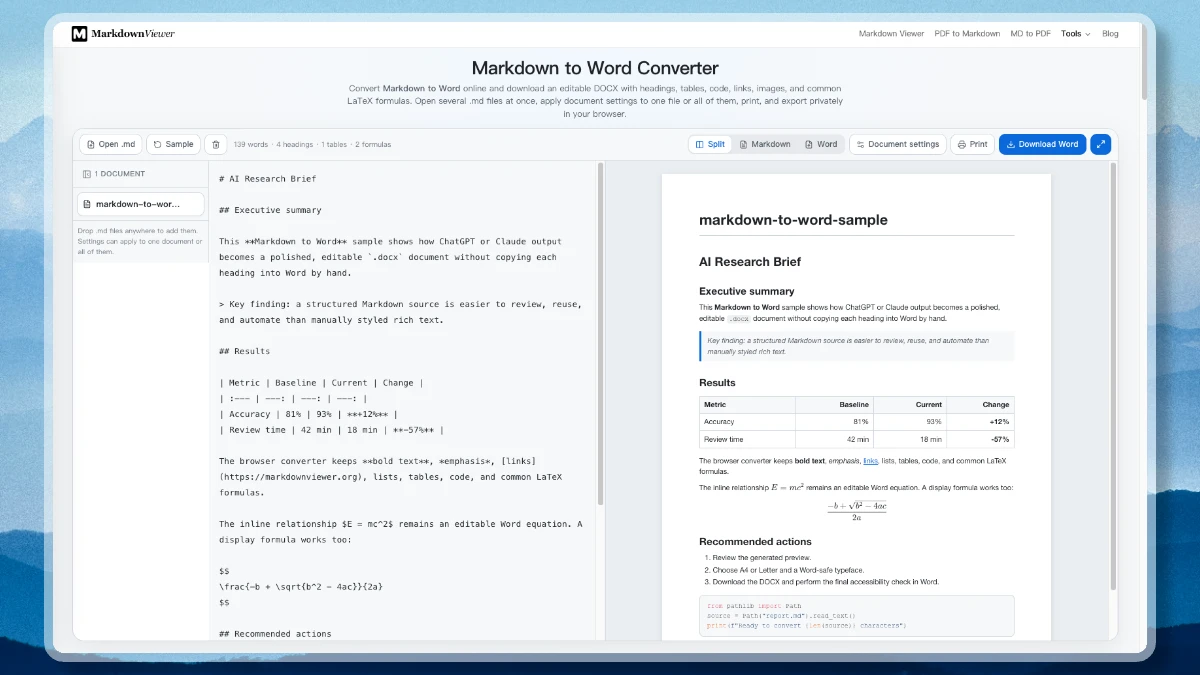
An AI answer usually arrives well organised: a heading per section, a comparison table, a numbered list of next steps, a fenced code block. Then you paste it into Word and all of that organisation evaporates. The Markdown to Word converter exists for the ten minutes you would otherwise spend re-applying heading styles by hand — but the difference between a passable export and one you would attach to an email is mostly in what you do before you press download.
Why paste is the wrong tool
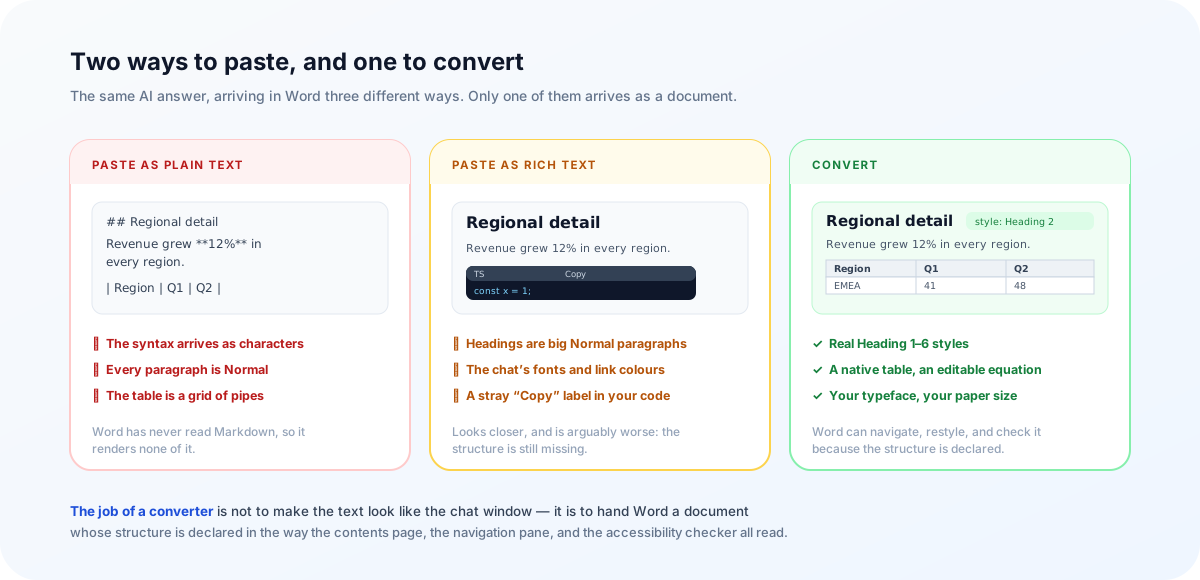
There are only two ways to paste, and both lose something specific.
Paste as plain text and you get exactly what you copied — which means the Markdown syntax itself. Your headings are lines beginning with ##, your emphasis is a pair of asterisks, and your table is a grid of pipe characters that no longer lines up. Word renders none of it, because Word has never read Markdown.
Paste as rich text looks better and is arguably worse. You inherit the chat interface’s HTML: its font stack, its link colour, its code-block wrapper, and often a stray “Copy” label sitting on the first line of your code. Crucially, the headings arrive as paragraphs that look big rather than paragraphs styled Heading 1. That distinction is invisible until you try to build a table of contents, use the navigation pane, run the accessibility checker, or apply your organisation’s theme — all of which read paragraph styles, not font sizes.
So the job of a converter is not to make the text look like the chat window. It is to hand Word a document whose structure is declared in the way Word understands.
The five-minute pass before you convert
Everything here is faster to fix in Markdown than in Word, which is the whole argument for doing it first. Paste the answer into the source pane and read down it once.
- Fix the heading ladder. Models frequently start at
##, or jump from##to####. Word takes levels literally: a skipped level produces a gap-toothed contents page and an accessibility warning. Give the document one#title and a continuous ladder beneath it. - Count table columns. Six or more columns of prose will not fit an A4 page at a readable size. Cut a column, merge two, or transpose the table so the long axis runs down the page — the table generator transposes in one click.
- Tag your code fences. A bare
```gets no syntax highlighting because nothing said what language it is. Writing```pythoncosts six characters and colours the block in the preview, in the DOCX, and on paper. - Check the maths delimiters. Formulas are read from
$…$and$$…$$. If the model emitted\(…\)or\[…\], convert the delimiters or the expression will arrive as literal text. A lone dollar sign is safe: a pair has to look like LaTeX before it is treated as maths, so$40to$60stays a price range. - Delete the conversation. “Certainly! Here’s a summary…”, the closing “Let me know if you’d like me to expand on any section”, and inline citation markers are all artefacts of a chat, not parts of a document.
- Decide about images. Images referenced by URL are fetched from their original host at export time, and plenty of hosts refuse cross-origin requests. Rather than failing the whole document, the converter writes an italic
[Image: alt text]marker in place of the picture. Better to know now than to discover it in the attachment.
The counter in the toolbar — words, headings, tables, formulas — is the quickest way to check that pass landed. If a document you know has four sections reports one heading, the ladder is broken somewhere above the first ##.
What actually survives the conversion
The converter renders your Markdown, then walks the result and writes real Word objects — not a screenshot of a preview. This is the mapping:
| In the Markdown | In the Word file | Why it matters |
|---|---|---|
# … ###### | Heading 1–6 paragraph styles | Navigation pane, contents page, restyling, screen readers |
| a | b | | A native table, shaded header row, ruled cells, per-column alignment | Columns stay resizable and the header repeats across a page break |
```python | A framed block in Word’s Source Code style, one paragraph per line, keywords and strings coloured | Code stays readable instead of collapsing into prose |
> quoted line | A tinted paragraph with a left rule, in Word’s Quote style | Named as a quotation, not merely drawn like one — see below |
$E = mc^2$ | An editable Word equation | Opens in Word’s equation editor; not a flat image |
- [ ] / - [x] | ☐ and ☒ characters | Checklists survive as text you can print and tick |
| Links, bold, italic, strikethrough | Real hyperlinks and character formatting | Colour and underline reach the text, not just a wrapper |
One detail worth knowing, because it explains an oddity you might otherwise trip over: heading levels are taken from your Markdown source, not from the rendered preview. The shared preview renderer demotes a leading # to an <h2> so that a tool page keeps exactly one <h1> for search engines, which means the rendered tag names cannot be trusted. The Word document, the preview typography, and the print sheet all size headings from the source ladder instead — and fenced code is stripped before that scan, so a # comment line inside a Bash block never becomes a chapter title.
A file that says what it is
Word has an element for a table and an element for a picture, but none for a quotation or a code block: both are ordinary paragraphs, and what separates them from italic prose and a run of monospace lines is the named style they point at. Drawing the tint and the left rule as direct formatting produces the right picture and says nothing about what the paragraph is.
So the exported document carries Word’s own names — Quote, Source Code, Code — on those paragraphs and runs. Two things follow. Restyling every quotation in the document is one click in the styles pane rather than a manual sweep. And the file can be read back: send the DOCX out, let someone edit it in Word, and the Word to Markdown converter returns quotes as quotes and code as fenced code instead of flattening the lot into paragraphs — the reasoning is in Word to Markdown reads styles, not looks.
Four settings that decide whether it looks like your document
Title and author
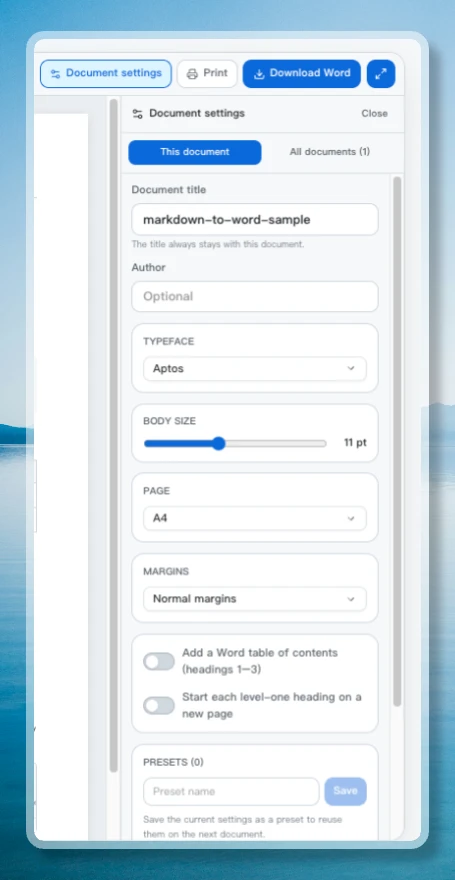
Filling these produces a proper title block — the title, the byline beneath it, a hairline rule under both — and writes the same values into the file’s document properties, so the name in Word’s info panel is not Untitled. The title also names the downloaded file and sits in a centred footer on every page beside a real page-number field, which keeps counting correctly however much you add in Word afterwards. It is the difference between an attachment that looks addressed to someone and one that looks dumped.
Paper and margins
Choose A4 or US Letter by your reader’s geography, not your own — a document laid out for the wrong one gets silently rescaled at print time and every margin drifts. Normal margins suit anything leaving the team; narrow is for internal reference sheets where content per page wins. Both choices redraw the preview immediately, because the preview is not a web page in a pane: it is that sheet of paper at three-quarter scale, with the margins you picked, so a line breaks and a table divides on screen where they do in Word.
A Word-safe typeface and body size
Aptos, Arial, Calibri, Georgia and Times New Roman are the options, and the constraint is deliberate: a DOCX refers to fonts by name rather than embedding them, so a font your recipient does not have is a document that re-flows on their machine. Set the body size here too — code is rendered one point smaller, matching the preview.
Contents page and chapter breaks
Add a table of contents inserts a genuine Word field covering headings 1–3, hyperlinked, and the document asks Word to refresh its fields on open — so the contents page stays accurate after you edit a heading. Start each level-one heading on a new page turns a long answer into chapters. Once a combination works, save it as a preset and the next document is two clicks.
Why the download matches what you approved
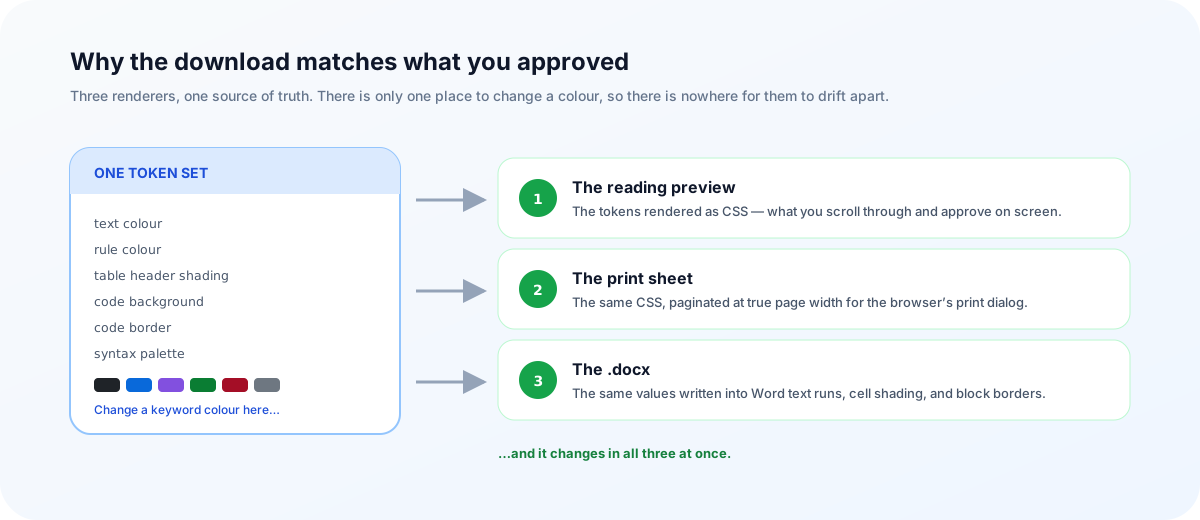
The usual complaint about document exporters is that the preview is a polite fiction: you approve one thing on screen and receive another in the file. That happens when the preview is styled by a stylesheet and the export is built by unrelated code, each with its own idea of what a blockquote looks like.
Here, the reading pane, the print sheet and the .docx are all generated from a single set of tokens — text colour, rule colour, table header shading, code background and border, and the syntax-highlighting palette. The preview turns those tokens into CSS; the Word writer turns the same tokens into runs and cell shading. Changing the colour of a keyword in code changes it in all three places at once, because there is only one place to change it.
That shared origin is also why Print is worth knowing about. It sends the page you are looking at — same paper size, same margins, same title block — to your printer or to “Save as PDF”, without a round trip through Word. For a handout or a PDF to attach, that is the whole job; the DOCX is only necessary when someone has to edit it.
More than one answer at a time
Research work rarely produces a single file. Open or drop a batch of .md files — up to a dozen — and each becomes an entry in the document list with its own title. The settings panel then applies either to this document or to all documents, so one choice of paper size and typeface covers the set; with that switch on, the download button becomes Word ×n and writes the whole batch in one action.
Before that, step through the list and look at each one. The workspace has three views — Split for source beside its Word page with both panes scrolling together, Markdown for editing, Word for reading the page full width — plus a fullscreen toggle for a long document. Whatever you have open stays in the browser between visits, so an interrupted review is still there tomorrow.
Three things to check in Word
The conversion gets you a document; it does not get you out of reading it. Three places are worth a look before you send it on.
- Anything beyond ordinary maths. Fractions, roots, superscripts and subscripts, the common Greek letters and the usual operators become editable Word equations. A matrix, an aligned multi-line derivation or a numbered equation reference does not — rebuild those few in Word’s equation editor, where they are a two-minute job rather than a typesetting project.
- Your organisation’s template. Paper, margins, typeface, body size and the heading scale are all settings here, but the file is generated fresh rather than poured into your house
.dotx. Because the headings are real heading styles, applying the template in Word once restyles the whole document — which is exactly what pasted text cannot do. - Where the pages break. The preview shows the same paper you chose, so long tables and code blocks land close to where they will in Word — but a page break is Word’s to make. Skim the pagination, and turn on chapter breaks if a section should start clean.
And one boundary that is not a review note: this runs in a tab, on the document in front of you. Converting hundreds of files on a schedule is a script’s job, where failures can be logged and retried.
Editing, preview, and DOCX packaging all run in your browser after the page loads. There is no upload queue and no copy of your draft on a server. The single network request the exporter can make is to fetch a remote image your own Markdown points at — from that image’s original host.
Frequently asked questions
Why does pasting ChatGPT output into Word lose the formatting?
Because neither paste mode gives Word real structure. Paste as plain text and the Markdown arrives as literal ## and ** characters. Paste as rich text and you inherit the chat interface’s own fonts, colours, and code-block chrome — visually styled paragraphs that Word still treats as body text. Converting instead maps # through ###### onto Word’s Heading 1–6 paragraph styles, which is what the navigation pane, the table of contents, and accessibility checkers actually read.
What should I fix in the Markdown before converting?
Four things account for most disappointing exports: a heading ladder that starts at ## or skips a level, tables with more columns than an A4 page can hold, code fences with no language tag, and leftover conversational filler. All four are faster to fix in Markdown than in Word.
Will the table of contents update in Word?
The exported DOCX contains a real Word table-of-contents field covering headings 1–3, not a static list, and the document is flagged to refresh fields. Word may ask to update fields when you open it, or you can press F9 in the field. Because it is a field, it stays correct after you edit headings.
Why is the typeface list short?
Every option — Aptos, Arial, Calibri, Georgia, Times New Roman — is a font your recipient almost certainly already has. A DOCX references fonts by name rather than embedding them, so an exotic choice re-flows on someone else’s machine. Change the font in Word afterwards if you need one your organisation ships.
Are the tables and formulas still editable in Word?
Yes. GFM pipe tables become native Word tables with a repeating header row, and common LaTeX becomes editable Word equations rather than pictures. You can resize columns, restyle the table, and open a formula in Word’s equation editor.
Does the exported file have page numbers?
Every page carries a centred footer with the document title and a real page-number field, so the numbering stays right as the document grows. Word’s own document properties are filled in too, from the title and author you set.
Can the Word file be turned back into Markdown later?
Yes, and that is why quotes and code are written as paragraphs carrying Word’s own style names — Quote, Source Code and Code — rather than as italics and a grey box. A reader that matches on style names, including this site’s Word to Markdown converter, gets the structure back instead of a wall of paragraphs.
Try it
Paste the answer, set the page, download a Word file you would actually attach.
Open the Markdown to Word converterReferences
- ECMA-376 — Office Open XML, the .docx file formatecma-international.org
- docx — the DOCX writer used in the browsergithub.com/dolanmiu/docx
- KaTeX — the maths engine behind the previewkatex.org
- The Markdown to Word convertermarkdownviewer.org/markdown-to-word
- Word to Markdown — the same document, going backmarkdownviewer.org/word-to-markdown