Word to Markdown reads styles, not looks — and tells you what it dropped.
A Word file declares its own structure. Reading that declaration is what separates a good conversion from a plausible one — and it is why the converter can say, honestly, which parts of your document it could not carry across.
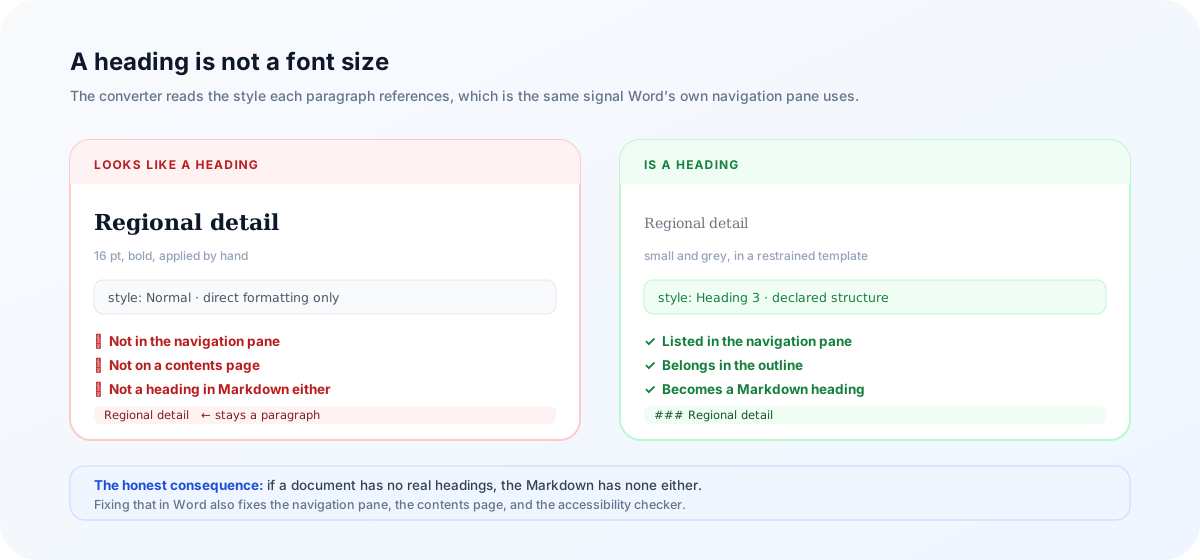
Give two converters the same Word document. One looks at the page and reasons about appearance: this line is 16 point and bold, so it is probably a heading. The other reads what the document says about itself: this paragraph references the Heading 1 style, so it is a heading. The Word to Markdown converter takes the second route — and the interesting consequence is not that it is more accurate. It is that it knows when it does not know.
Why “looks like a heading” is the wrong question
Inside a .docx, a heading is not a font size. It is a paragraph carrying a reference to a named style, and the style definition lives separately. That indirection is the whole point of Word’s styles: change Heading 1 once and every chapter title follows.
It also means appearance and structure can disagree, in both directions:
- Someone who selected a line, pressed bold and bumped it to 16 point did not create a heading. Word’s own navigation pane will not list it, and neither will a contents page.
- A paragraph styled
Heading 3in a restrained corporate template may render small, grey and unbold. It is still a heading, and it still belongs in the outline.
Reading style names respects what the author declared. It is also the honest position: if a document has no real headings, the conversion should surface that fact rather than invent an outline out of font sizes — the fix belongs in Word, where it will also fix the navigation pane and the accessibility checker.
A PDF has no styles at all — only glyphs at coordinates in a named font at a size. There, guessing from font size is the only available signal, which is exactly what the PDF converter does. Same output format, opposite technique, because the input formats carry different information.
What a .docx actually is
A modern Word file is a ZIP archive of XML parts. Rename one to .zip, unpack it, and you will find roughly this:
report.docx
├── word/document.xml     ← the content, paragraph by paragraph
├── word/styles.xml       ← what "Heading 1" and "Quote" mean
├── word/media/           ← the embedded images, as real files
└── [Content_Types].xml
This is why the whole operation fits in a browser tab: unzipping and reading XML are things browsers already do well. It is also, precisely, why a legacy .doc file will not work — that is a binary compound-file format from a different era, not a ZIP of XML. Re-save it as .docx in Word or LibreOffice first.
The pipeline, in five passes
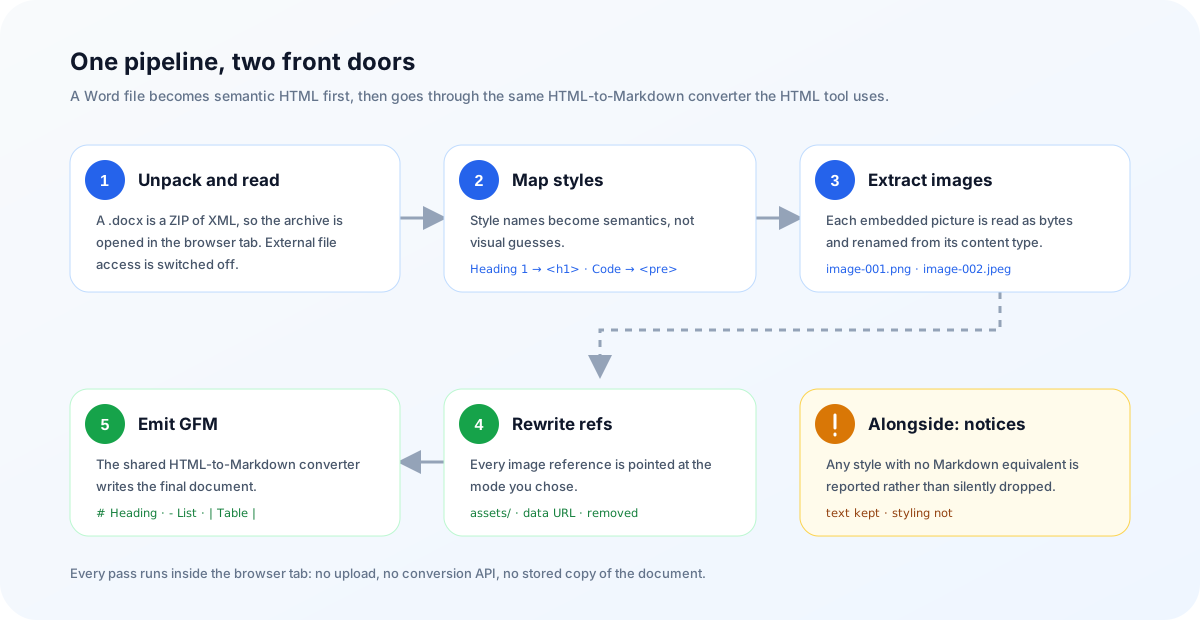
- Unpack and read. Mammoth reads the archive in the tab. External file access is switched off, so a document cannot make the converter reach out to something it references. Files are capped at 30 MB, and up to twelve documents can be open at once.
- Map styles to semantics. The default map covers the built-in vocabulary — headings, lists, quotes, emphasis — and any style map embedded in the document itself is honoured. On top of that sit a few explicit rules: paragraphs styled
CodeorSource Codebecome<pre>blocks, theCodecharacter style becomes<code>, and Word’s strikethrough becomes<del>. - Extract the images. Each embedded picture is read as bytes and named from its position and content type —
image-001.png,image-002.jpeg— rather than trusting whatever internal name it had. - Rewrite the image references. Depending on the mode you chose, each
<img>points atassets/image-001.png, carries an inline data URL, or is removed entirely. - Write GFM. The semantic HTML goes through the same converter that powers the HTML to Markdown tool — ATX headings, dash bullets, fenced code, pipe tables. One pipeline, two front doors.
That last step is worth pausing on, because it explains a design choice you can feel while using the tool: the Word converter’s options for links, cleaning and complex tables behave identically to the HTML tool’s, since underneath they are the same options.
The notices: what an honest converter says out loud
Every document eventually contains a style the mapping has never heard of. Corporate templates are full of them: Body Text, First Paragraph, Quote Char, TableText. Mammoth raises a warning for each one, in a form like this:
Heading 1     "Quarterly Report"
Body Text     "Revenue grew across…"
Heading 2     "Regional detail"
First Para.   "Every region improved…"
# Quarterly Report

Revenue grew across…

## Regional detail

Every region improved…
Word styles without a Markdown equivalent — the text is kept, the styling is not.Unrecognised paragraph style: 'Body Text' (Style ID: BodyText)Unrecognised paragraph style: 'First Paragraph' (Style ID: FirstParagraph)
Notice what the notice does not say. It is not an error, and nothing was lost from the text — both paragraphs are in the output. What was dropped is a visual instruction (an indent, a spacing tweak, a slightly different leading) that Markdown has no way to express and, nine times out of ten, you did not want anyway.
The argument for showing them anyway is simple: the alternative to a noisy conversion is not a better one, it is a silent one. Every converter drops these styles. Most do it without mentioning it, which means you find out later — if at all — when a document you migrated turns out to have lost a distinction that mattered. The notice hands you the decision instead of making it on your behalf. It is dismissible per document, and it comes back if you change a setting and re-convert, because a different setting can raise different warnings.
Image extraction failures use the same channel. When a picture cannot be pulled out, the Markdown gets an [Image unavailable: alt text] marker in its place and a notice tells you which one, rather than leaving a silent gap in the middle of a report.
Images: three modes, and one that is usually right
Getting text out of Word is easy. Getting the pictures out is the part that decides whether the result is usable.
- Extract to
assets/and download a ZIP — the recommended mode. Images are written as real files, the Markdown referencesassets/image-001.png, and one ZIP contains the.mdplus the folder. This is the shape a Git repository or a static site wants. - Embed as data URLs — one self-contained file with the image bytes inline as base64. Convenient to paste somewhere; considerably larger, and unpleasant to diff.
- Omit images — text only, for when you want the prose and nothing else.
A small nicety in the first mode: the preview cannot resolve assets/… paths, since those files do not exist until you download the ZIP. So the preview quietly substitutes the data URLs it already holds in memory — you see the images in place while the Markdown you copy keeps the clean relative paths.
Word’s clipboard HTML frequently references images as temporary files on your own disk, and a web page is not permitted to read those bytes. The markup arrives; the images do not. Paste is fine for a quick text conversion — open the .docx when the pictures matter.
Tables, and the case for leaving HTML alone
A rectangular Word table maps cleanly onto a GFM pipe table. A table with merged cells does not: Markdown has no rowspan or colspan, so a converter must choose between flattening the merge — producing a grid that reads as though every cell were independent, which is a quiet falsehood — and keeping the original HTML.
The default keeps it, after stripping anything executable: scripts, styles, event handlers, and javascript: URLs all come out, the table structure stays in. Markdown renderers that allow HTML will display it correctly, and a human reading the source can see exactly what spans what.
Where the conversion stops
| In the document | What to expect |
|---|---|
| Real heading styles, lists, quotes, standard tables | Clean Markdown, little to fix |
| Custom paragraph styles | Text kept, styling dropped, listed in the notices |
| Merged or nested tables | Preserved as sanitized HTML |
| Tracked changes, comments, captions, cross-references, content controls | No Markdown equivalent — check anything that depended on them |
| Equations and drawing-canvas graphics | Not carried across; re-create or export separately |
Legacy .doc, or files over 30 MB | Re-save as .docx, or split the document |
The counts above the file name — words, headings, tables, images, links — are the fastest sanity check. A twenty-page report that converts to two headings is telling you something about the original document, not about the converter.
Unzipping the archive, mapping styles, extracting images, rendering the preview and building the ZIP all happen in your browser. There is no conversion API behind this page — which is the reason it is usable for contracts, HR letters and internal reports at all.
Frequently asked questions
What do the conversion notices actually mean?
They list Word styles that have no Markdown equivalent — typically custom paragraph styles such as “Body Text” or “First Paragraph”. The text in those paragraphs is always kept; only the styling is dropped. A notice is information, not an error: dismiss it if the styling did not matter, and it reappears if you change a setting and re-convert.
Why does a bolded 16pt line not become a heading?
Because it is not a heading. In a .docx, a heading is a paragraph that references a heading style, which is what Word’s own navigation pane reads. A manually enlarged, bolded paragraph is body text that looks large. The converter maps declared structure rather than guessing from appearance, so it produces the document the author actually built — and if that means the headings are missing, the fix belongs in Word.
Why can’t it open an old .doc file?
A .docx is a ZIP archive of XML parts, which a browser can unpack and read. Legacy .doc is a binary compound-file format from a different era, and parsing it in the browser is not supported here. Open the document in Word or LibreOffice, save it as .docx, and convert that.
Why are images missing when I paste from Word?
Word’s clipboard HTML often references images as temporary local files whose bytes the browser is not allowed to read. The markup arrives, the pictures do not. Open the original .docx when reliable image extraction matters — that path reads the image bytes directly out of the archive.
Are Word tables converted losslessly?
Standard rectangular tables become GFM pipe tables. Tables with merged, spanned, or nested cells have no lossless Markdown representation, so those are kept as sanitized HTML instead of being flattened into cells that quietly misstate the data.
How does this compare to Pandoc?
Pandoc is the right tool for scripted migrations: pandoc input.docx -t gfm --extract-media=assets -o output.md gives you the same shape of result with a folder of media, and it belongs in a pipeline over many files. This converter is for documents you would rather not upload anywhere and want to inspect one at a time, with the unmapped styles shown to you rather than logged to a terminal you were not watching.
Try it
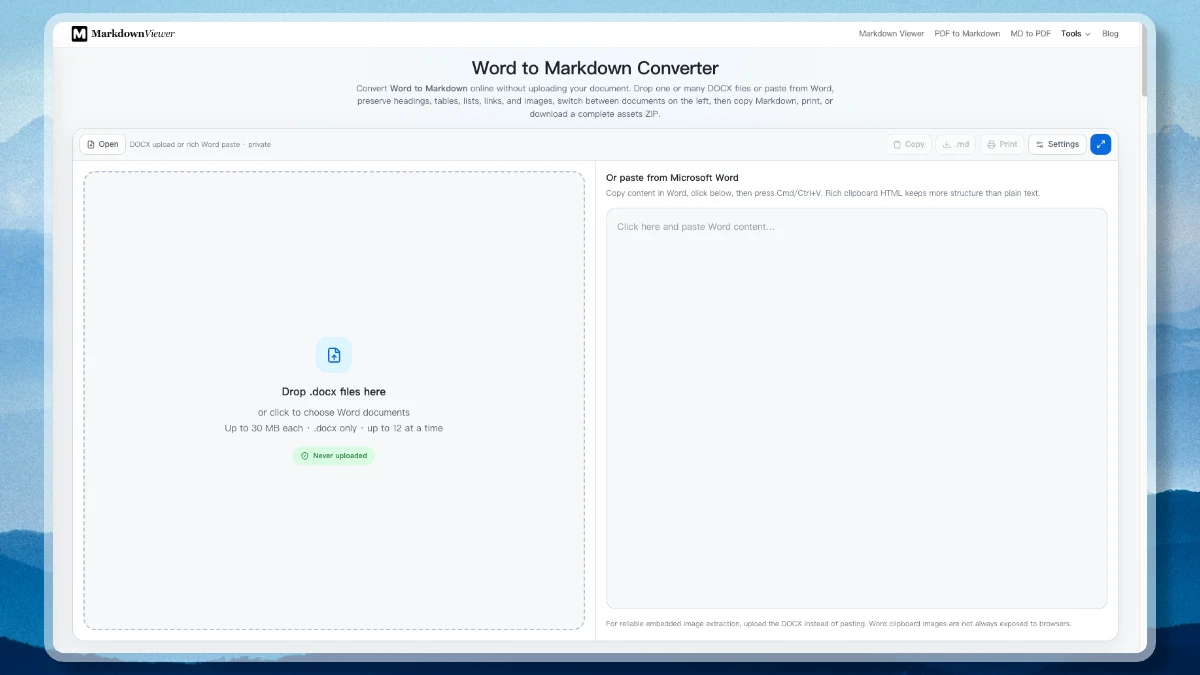
Drop a .docx in and see both halves of the answer: the Markdown, and what could not come with it.
Open the Word to Markdown converterReferences
- mammoth.js — DOCX to semantic HTML, driven by style mapsgithub.com/mwilliamson/mammoth.js
- ECMA-376 — Office Open XML, the .docx file formatecma-international.org
- GitHub Flavored Markdown specificationgithub.github.com/gfm
- Pandoc manual — DOCX input and --extract-mediapandoc.org/MANUAL.html
- The Word to Markdown convertermarkdownviewer.org/word-to-markdown