Hand-drawn Mermaid diagrams: sketch-style flowcharts from plain text.
Write five lines of text, get a flowchart. Flip one switch, and it looks like you sketched it on a whiteboard — with handwriting fonts, your own colours, and 4K export.
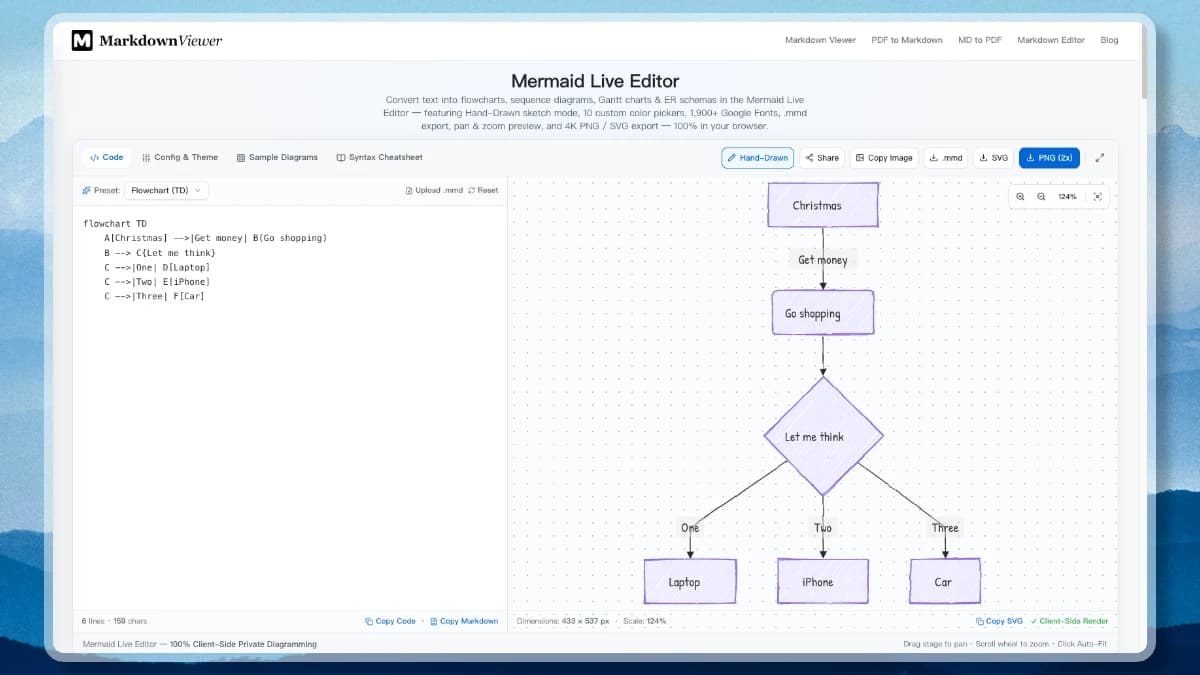
Most diagrams die the moment they are drawn. You drag boxes around in some design tool, export a PNG, paste it into a doc — and six weeks later the diagram is wrong and nobody can edit it because the source file lives on someone else’s laptop. Mermaid fixes that by making a diagram nothing more than text.
First, what is Mermaid?
Mermaid is a diagramming syntax: you describe the boxes and the arrows between them in plain text, and Mermaid draws the picture for you. There is no canvas, no dragging, no alignment guides. This is a complete flowchart:
flowchart LR
    A[Idea] -->|Draft| B(Write Markdown)
    B --> C{Review?}
    C -->|Ship it| D[Publish]
    C -->|Rework| B
That is the exact code in the screenshot above. A[Idea] is a box, C{Review?} is a diamond decision, and -->|Ship it| is a labelled arrow. Because it is text, three useful things follow: it lives inside your Markdown file, changing the diagram is a one-line edit, and GitHub, GitLab and Notion all render Mermaid natively when you wrap it in a ```mermaid code block.
The Mermaid Live Editor gives you that syntax with an instant preview — and one button that changes how the whole thing looks.
1. Flip the switch: Classic vs Hand-Drawn
Hand-Drawn sits in the top-right toolbar. It is a rendering style, not a syntax: the code does not change, only the way it is drawn. Every straight edge gains a slight wobble, fills get a pencil-hatched texture, and labels switch to a handwriting font.


The difference is not decoration. A crisp vector diagram reads as finished, and people respond to finished things by nodding rather than arguing. A sketch reads as a work in progress, and invites the reply you actually want in a design review: “what about this case?” Use Classic for published documentation; use Hand-Drawn when you are still thinking out loud.
2. Handwriting fonts, and 1,900+ others
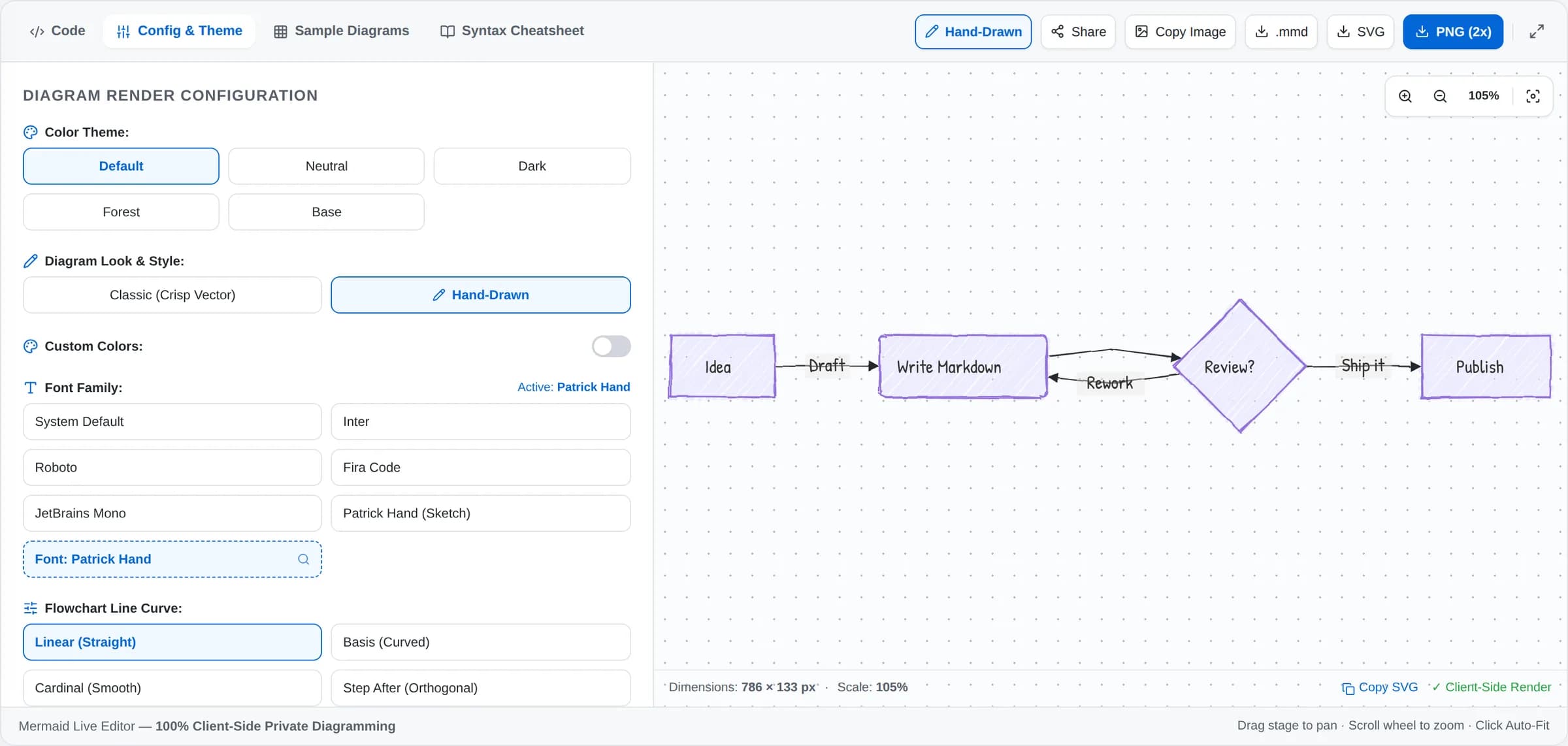
Turning on Hand-Drawn automatically switches labels to Patrick Hand, a handwriting face — a sketchy box with clinical typography inside it always looks slightly wrong. Open Config & Theme and you can search the entire Google Fonts catalogue for another one. Caveat is looser and more casual, Kalam sits between the two, and any neutral sans is one click away if you want sketchy shapes with readable labels.
3. Make it your colours
Five built-in themes cover most needs (Default, Neutral, Dark, Forest, Base). When you need brand colours, switch on Custom Colors and you get ten separate pickers — node fill, node text, borders, lines, arrowheads and background among them. Set the fill to your brand tint and the lines to a near-black, and a sketch diagram stops looking like a default and starts looking like it came from your team.
This matters most on slides. A hand-drawn diagram in your deck’s own palette reads as deliberate; the stock purple-on-white reads as a screenshot from a tool.
4. Start from a template instead of a blank page
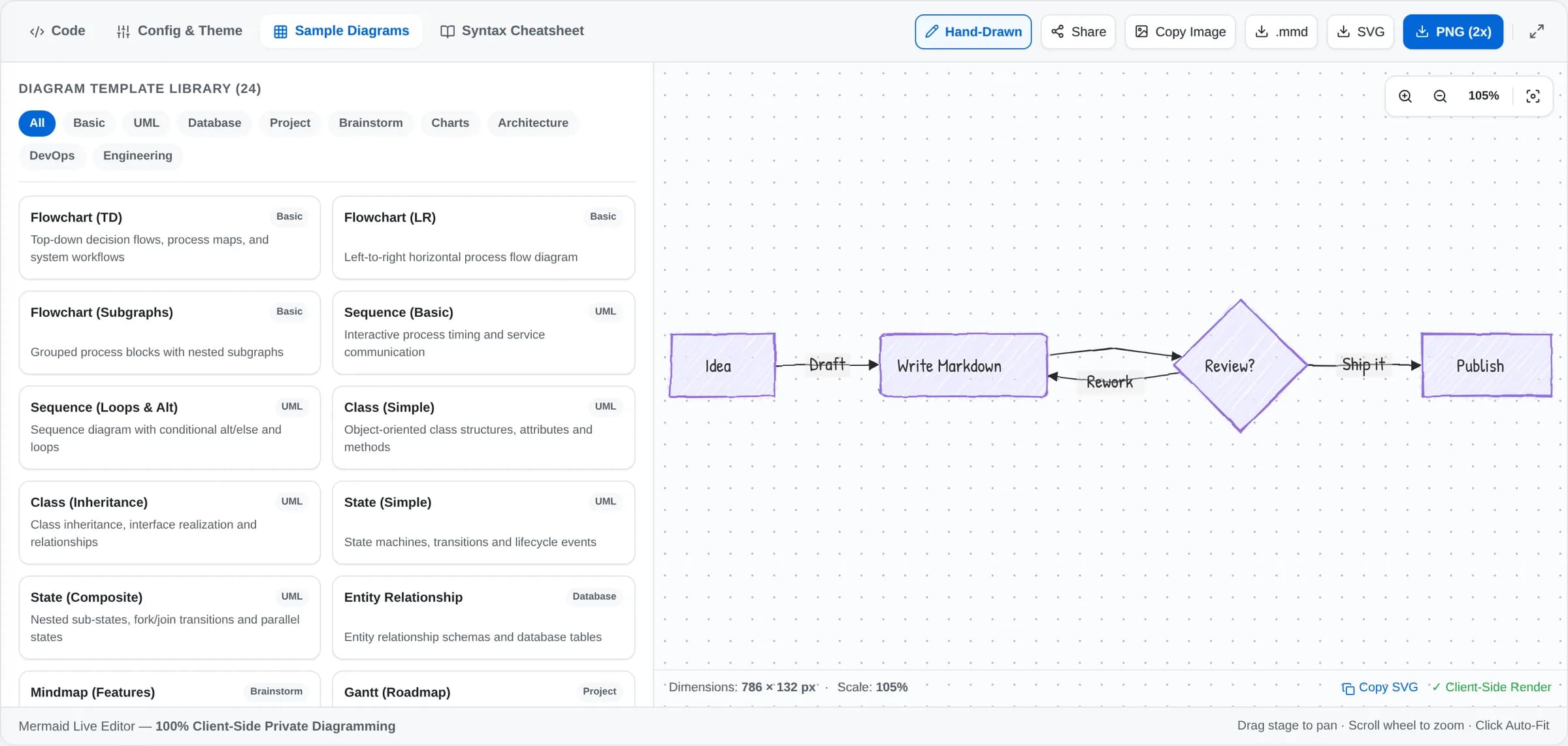
Nobody remembers Gantt syntax. The Sample Diagrams tab has 24+ ready-made templates grouped by category, and every one of them renders in Hand-Drawn mode:
- Basic — flowcharts top-down, left-right, and with grouped subgraphs.
- UML — sequence diagrams with loops and conditionals, class hierarchies, state machines.
- Database & Project — ER schemas, Gantt roadmaps, Kanban boards, user journeys.
- Brainstorm & DevOps — mind maps, Git branch graphs, timelines.
Load one, read the three lines that matter, and edit them. It is a much faster way to learn the syntax than the reference docs — and the Syntax Cheatsheet tab is there for the moment you need the exact arrow type.
5. Get it out: 4K PNG, SVG, .mmd or a link
A diagram is only useful where it ends up. Five ways out:
- PNG at 1x–4x — pick 4x when it is going on a slide or into print, so it stays sharp on a projector.
- SVG — vector, so it scales to any size and stays editable in design tools.
- Copy Image — straight to your clipboard, ready to paste into Slack or a deck.
- .mmd source — the text itself, to commit next to your code so the diagram stays reviewable.
- Share link — the diagram is packed into the URL itself, so a teammate opens it already editable. Nothing is stored on a server.
A note on privacy
Mermaid parses and draws everything inside your browser tab. There is no render queue and no upload step, which is what makes this safe for internal system architecture, security workflows and roadmaps that have not shipped yet. Close the tab and nothing is left behind.
Frequently asked questions
What is Mermaid?
Mermaid is a text-based diagramming syntax. You describe boxes and the arrows between them in plain text, and Mermaid draws the picture. Because a diagram is just text, it lives in the same file as your notes or code, and a change to the diagram is a change to a line of text.
Does Hand-Drawn mode change my diagram code?
No. Hand-Drawn is a rendering style, not a syntax. The same Mermaid code renders as crisp vector shapes in Classic mode and as sketchy pencil strokes in Hand-Drawn mode, so you can switch back and forth at any time — and the .mmd file you export is identical either way.
Which diagram types work in Hand-Drawn mode?
Flowcharts, sequence diagrams, class and state diagrams, ER schemas, mind maps, Gantt charts, Git graphs, user journeys and more — every template in the library renders in Hand-Drawn mode. A few chart types (C4 architecture, pie and quadrant charts) keep their own fixed styling, so their shapes stay crisp while the rest of the sketch look still applies.
Can I use a handwriting font?
Yes. Turning on Hand-Drawn switches the label font to Patrick Hand automatically. You can search all 1,900+ Google Fonts in the Config & Theme tab and pick another handwriting face such as Caveat or Kalam, or go back to a neutral sans.
Are my diagrams uploaded anywhere?
No. Mermaid parses and renders your diagram inside your browser tab. Nothing is sent to a render server, which makes it safe for internal architecture, security workflows and unreleased product plans.